# Practical guides
The most common tasks explained step by step with an example: new products, extra ingredients, promotions and stock control.
# How the menu is organised
The rest of the manual explains PizzaGest **screen by screen** (it is what opens when you press **F1**). These guides work the other way round: they start from **what you want to achieve** and take you step by step, with an example, through the screens you need.
Before you create a product, it helps to know how PizzaGest stores the menu. There are six pieces that always fit together in the same way.
## The six pieces of the menu
| Piece | What it is | Example | Where you create it |
|---|---|---|---|
| **Inventory Item** | Any merchandise in the stockroom: what you buy and keep stock of. | Mozzarella, medium dough, can of soft drink, pizza box | **Items → Inventory Items** |
| **Major Group** | The top level of the menu. It decides whether ingredients can be chosen in its items, whether they allow half and half and which VAT they carry. | Pizzas, Sandwiches, Drinks | **Items → Major Groups** |
| **Family Group** | A set of items of the same major group that behave the same way: same kitchen printer, same maximum number of ingredients. | Medium Pizzas, Family Pizzas | **Items → Family Groups** |
| **Inventory items of the family group** | The ingredients that can be used in that family group: those in its recipes and those the customer can order as an extra, with their price. | Mushrooms at 0.60 € in Medium Pizzas | **Items → Family Groups**, **Inventory Items** button |
| **Sales Item** | What the customer orders and what appears on the ticket, with its code and its prices. | Medium Barbecue Pizza | **Items → Sales Items** |
| **Recipe** | The ingredients an item contains and in what quantity. With it PizzaGest deducts the stock and knows what the customer can remove. | Dough, tomato, mozzarella, bacon and barbecue sauce | **Items → Sales Items**, **Recipe** button |
Some pieces hang from others:
```
Major Group Pizzas
└─ Family Group Medium Pizzas ── Inventory items of the family group (mushrooms, bacon, extra cheese…)
└─ Sales Item Medium Barbecue Pizza
└─ Recipe medium dough · tomato · mozzarella · bacon · barbecue sauce
```
## The order matters
Each piece needs the previous one to exist. If you start from scratch, this is the order:
1. **Inventory items** that are not yet in the stockroom.
2. **Major Group**.
3. **Family Group**.
4. **Inventory items of the family group**.
5. **Sales Item**.
6. **Recipe** of the item.
Usually you only need part of the route: for a new pizza, the major group, the family group and almost all the ingredients already exist.
The most common mistake: putting in a recipe an ingredient that is not among the inventory items of the family group. PizzaGest does not let you save the recipe until you add it to the family group (step 4).
## Which guide do I need?
| I want to… | Guide |
|---|---|
| Sell a type of product I did not have before: sandwiches, burgers, desserts… | [Adding a new product line](https://docs.pizzagest.com/books/pizzagest-O9f/page/adding-a-new-product-line) |
| Add a product to a family group I already have: a new pizza | [Adding an item to an existing family group](https://docs.pizzagest.com/books/pizzagest-O9f/page/adding-an-item-to-an-existing-family-group) |
| Offer a new ingredient as an extra, or put it in a recipe | [Adding an extra ingredient](https://docs.pizzagest.com/books/pizzagest-O9f/page/adding-an-extra-ingredient) |
| Run a promotion: 2x1, the second unit at 50%… | [Creating a promotion](https://docs.pizzagest.com/books/pizzagest-O9f/page/creating-a-promotion) |
| Know how much product is really used: delivery notes, losses, wastes and inventories | [Keeping stock under control](https://docs.pizzagest.com/books/pizzagest-O9f/page/keeping-stock-under-control) |
## Before you start
- Everything is done from the **Items** menu. If an option does not appear or is disabled, your [access level](https://docs.pizzagest.com/books/pizzagest-O9f/page/access-level-definition) may not allow it: you need to [sign in](https://docs.pizzagest.com/books/pizzagest-O9f/page/sign-inout) with a higher level.
- On any screen, **F1** opens the manual page that explains all its fields.
- If you have **online orders** or integrated delivery platforms, the changes do not get there by themselves: when you finish, you have to run an [Export to Web](https://docs.pizzagest.com/books/pizzagest-O9f/page/export-to-web). Each guide reminds you in its last step.
Can't find what you are looking for? The Frequently Asked Questions page has the most common questions, and our support team helps you by phone, WhatsApp or email.
# Adding a new product line
Use this guide when you want to sell **a type of product you did not have until now**: you have to create everything, from the ingredients to the recipe. If the new product belongs to a family group that already exists, it is quicker to follow [Adding an item to an existing family group](https://docs.pizzagest.com/books/pizzagest-O9f/page/adding-an-item-to-an-existing-family-group).
Example. Your pizzeria starts selling sandwiches. The first one will be the Pork loin and cheese sandwich, at 5.50 €, and the customer will be able to order it with bacon as an extra.
The steps, in this order:
1. Register the ingredients in the stockroom.
2. Create the major group (if it does not exist).
3. Create the family group.
4. Set the inventory items of the family group.
5. Create the sales item.
6. Define its recipe.
7. Check the result.
## 1. Register the ingredients in the stockroom
Go to **Items → Inventory Items**. You only have to create the ingredients that **do not exist yet**: you probably already use bacon on the pizzas. You are missing the bread, the pork loin and the sliced cheese.
Click **Add** and fill in the details of the first one:
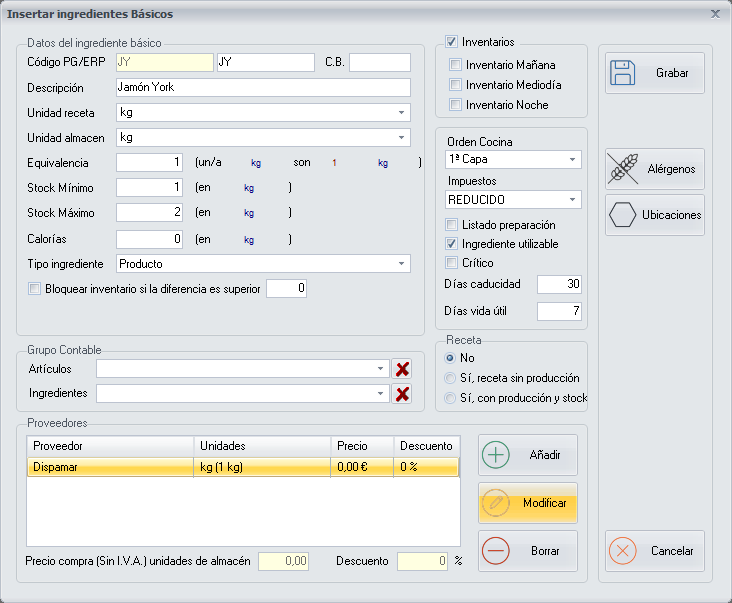
- **Item ID**: short and easy to remember, 2 or 3 letters. Enter `PB`.
- **Description**: `Sandwich bread`. It is a good idea to use the same name that appears on the vendor's delivery note.
- **Recipe unit**: the unit in which you will use it in the recipes. For the bread, `unit`.
- **Stock unit**: the unit in which you store it and count it in the inventories. For the bread, `box`.
- **Equivalence**: how many recipe units there are in one stock unit. If the box holds 40 breads, enter `40`.
- **Minimum Stock** and **Maximum Stock**: in stock units. Below the minimum, it is time to order from the vendor.
- **Inventory item type**: `Product`.
- **Taxes**: the VAT you buy it with.
Leave **Inventory item available** ticked (it comes that way) and click **Save**.
Repeat with the other two:
| Item ID | Description | Recipe unit | Stock unit | Equivalence |
|---|---|---|---|---|
| `PB` | Sandwich bread | unit | box | 40 (one box is 40 units) |
| `LO` | Pork loin | kg | tray | 2 (one tray is 2 kg) |
| `QL` | Sliced cheese | kg | pack | 1 (one pack is 1 kg) |
For everything that is weighed, use kg as the recipe unit and never grams: vendors invoice in €/kg, so the costs come out without conversions.
Allergens. Before saving each ingredient, click Allergens and tick the ones it has (bread, gluten; cheese, milk). This is what is later shown to the customer.
All the fields of the screen are explained in [Add/Modify Inventory Items](https://docs.pizzagest.com/books/pizzagest-O9f/page/addmodify-inventory-items).
## 2. Create the major group
Go to **Items → Major Groups**. PizzaGest already comes with the most common major groups created (Drinks, Sandwiches, Salads, Pizzas, Desserts…).
- If **Sandwiches** is already in the list, select it, click **Modify** and check that its options are the ones below.
- If it is not, click **Add**.
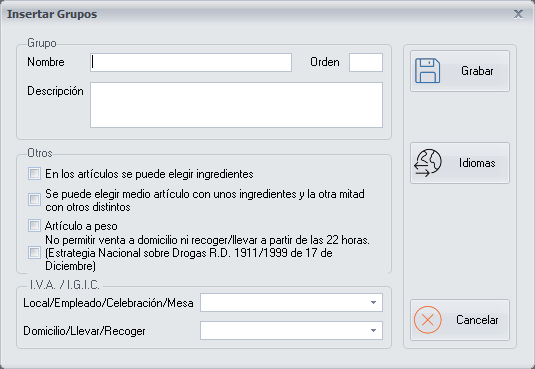
- **Name**: `Sandwiches`.
- **Ingredients can be chosen in the items**: **tick it**. This way the customer will be able to remove the cheese or add bacon. Without this option you will not be able to set the inventory items of the family group (step 4).
- **Half of the item can be chosen with some ingredients and the other half with different ones**: leave it unticked. It is for half and half pizzas.
- **VAT / IGIC**: the sales tax type, one for dine-in and another for delivery, take-away and pick-up.
Click **Save**.
## 3. Create the family group
Go to **Items → Family Groups** and click **Add**.
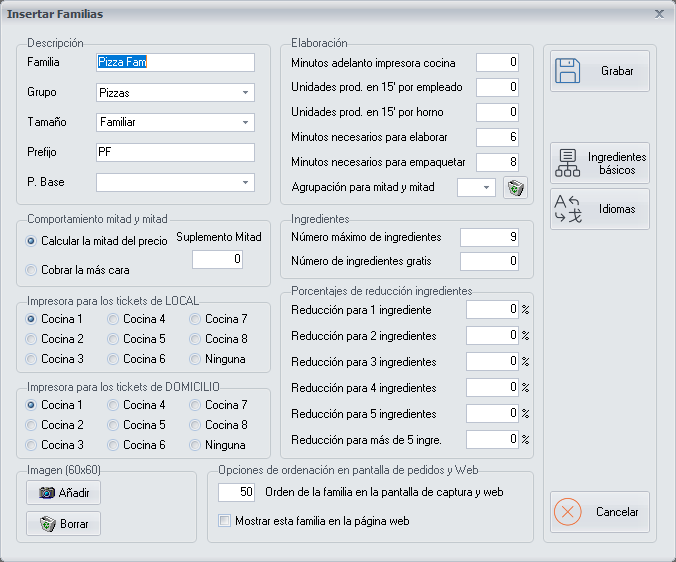
The essentials:
- **Family Group**: `Sandwiches`.
- **Major Group**: choose `Sandwiches`.
- **Printer for DINE-IN tickets** and **for DELIVERY tickets**: the kitchen area where the sandwiches are prepared, for example `Kitchen 1`.
- **Kitchen printer advance minutes**: the minutes the kitchen takes to prepare a product of this family group. PizzaGest uses them to send the kitchen tickets of an order in sequence.
- **Maximum number of ingredients**: how many ingredients an item of the family group can have at most. Enter `6`.
- **Order of the family group on the order screen and web**: the position of the family group on the orders screen. If they all have the same number, they are sorted alphabetically.
- **Show this family group on the website**: tick it if you sell online.
Click **Save**. The rest of the fields (half and half, reduction percentages, data for the website) are explained in [Add/Modify Family Groups](https://docs.pizzagest.com/books/pizzagest-O9f/page/addmodify-family-groups).
One family group or several? The items of a family group share printer, number of ingredients and price of the extras. If you are going to have small and large sandwiches with extras at different prices, the right thing is two family groups (*Sandwiches* and *Large sandwiches*), just like *Medium Pizzas* and *Family Pizzas*.
## 4. Set the inventory items of the family group
Here you say which ingredients can be used in the sandwiches and **how much each one costs as an extra**.
In **Items → Family Groups**, select `Sandwiches` and click **Inventory Items**.
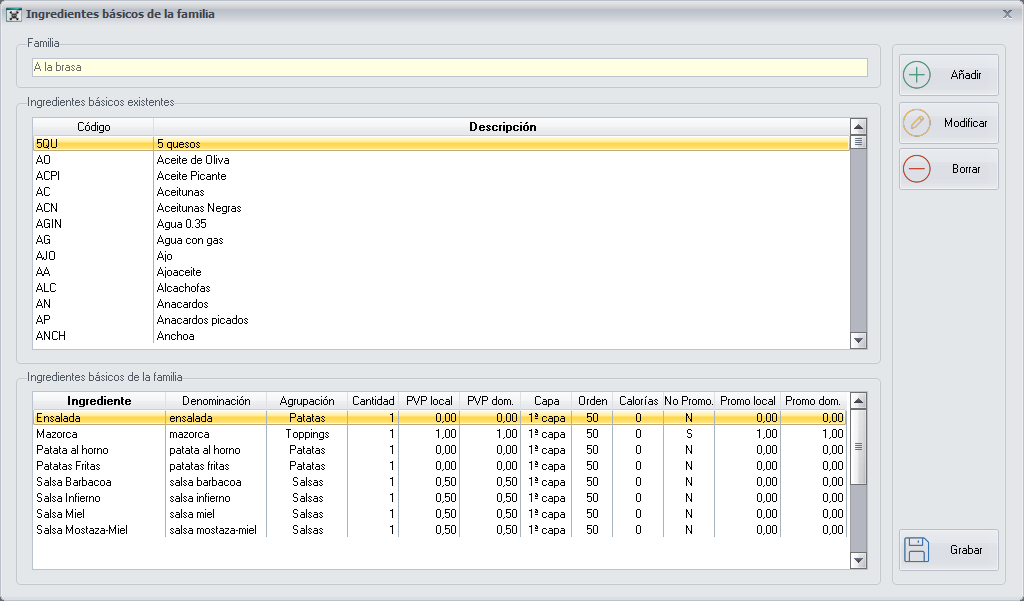
At the top are all the inventory items of the stockroom; at the bottom, those of the family group. Select `Pork loin` in the top list and click **Add**:

- **Denomination**: the name the customer and the employee will see. Leave `Pork loin`.
- **Grouping**: the block in which it will appear when taking the order (see [Inventory Items Grouping](https://docs.pizzagest.com/books/pizzagest-O9f/page/inventory-items-grouping)).
- **Quantity**: what one portion contains, in recipe units: `0.100` kg.
- **Price when the ingredient is added**: what is charged if the customer orders it as an extra, for dine-in and for delivery. `0` means free.
- **Price when WITHOUT mode is chosen**: what is deducted if the customer removes it. It is written **as a negative number**; with `0` nothing is deducted.
Click **Save** and repeat with the rest:
| Ingredient | Quantity | Price when added | Price in WITHOUT mode |
|---|---|---|---|
| Pork loin | 0.100 kg | 1.50 € | 0.00 € |
| Sliced cheese | 0.040 kg | 0.80 € | 0.00 € |
| Bacon | 0.040 kg | 1.00 € | 0.00 € |
You do not need to add the bread here: in the recipe it will go as a mandatory ingredient (step 6).
When you finish, click **Save** on the screen of the inventory items of the family group.
If the Inventory Items button appears disabled, the major group of the family group does not have the option Ingredients can be chosen in the items ticked (step 2).
## 5. Create the sales item
Go to **Items → Sales Items** and click **Add**.
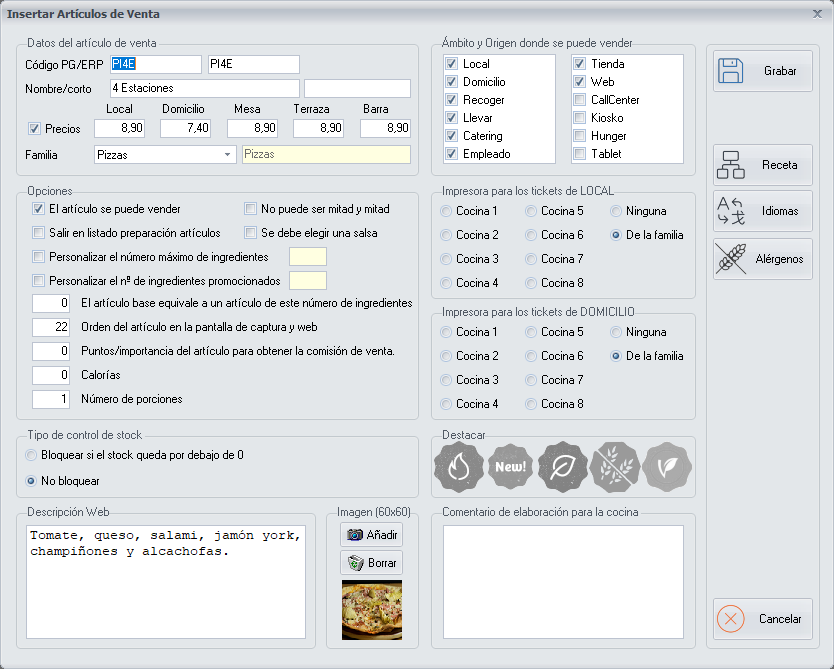
- **Code**: 3 or 4 letters, related to the name. Enter `BLQ`.
- **Short name**: `Pork loin and cheese sandwich`.
- **Prices**: `5.50` for each order type in which you sell it (Dine-in, Delivery, Table, Terrace, Bar). They can be different.
- **Family Group**: `Sandwiches`. The major group is filled in automatically.
- **The item can be sold**: ticked.
- **Order type and Source where it can be sold**: where it can be ordered (dine-in, delivery, pick-up…) and from where (branch, web, kiosk…).
- **Printer for tickets**: leave `From the family group`.
- **Web description** and **Image**: the text and the photo shown on the website and on the orders screen.
Click **Allergens** to review those of the item and then **Save**.
Easy codes. If all the items of a family group start the same way (BLQ pork loin and cheese, BTO Spanish omelette, BVE veggie), nobody has to learn them by heart.
## 6. Define the recipe
In **Items → Sales Items**, select the sandwich and click **Recipe**.
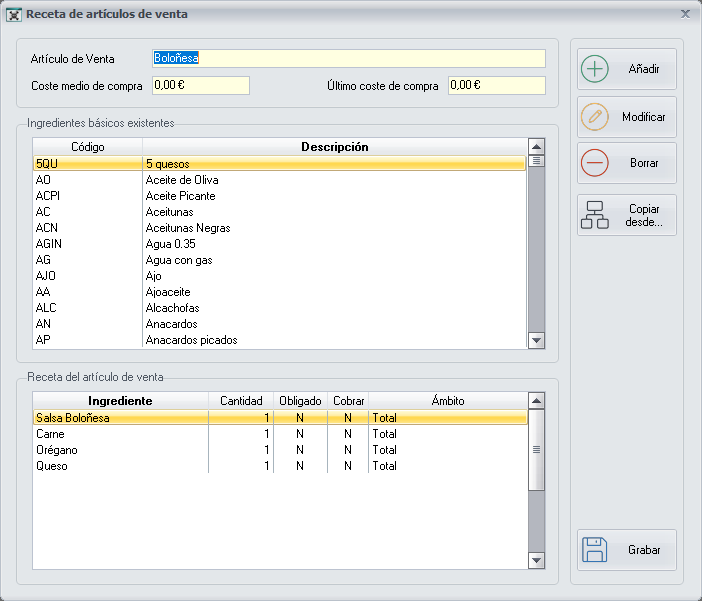
Select `Sandwich bread` in the top list and click **Add**:
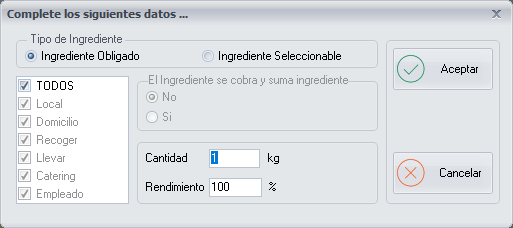
You have to choose the **ingredient type**:
| Type | When it is used | In our example |
|---|---|---|
| **Mandatory Ingredient** | The customer cannot remove it or change it. It can be limited to some order types: the pizza box, only for delivery and pick-up. | Sandwich bread |
| **Selectable Ingredient** | The customer can order the product **without** it. It has to be among the inventory items of the family group. | Pork loin, sliced cheese |
For the bread: **Mandatory Ingredient**, order type `ALL`, **Quantity** `1` and **Yield** `100`. Click **Ok**.
For the pork loin and the cheese: **Selectable Ingredient**, with quantity `0.100` and `0.040`.
With all the ingredients in the bottom list, click **Save**.
Yield is the percentage of the ingredient that is actually used. It is almost always 100; if out of 1 kg of chicken you only use 700 g, it would be 70.
## 7. Check the result
1. Open [Orders](https://docs.pizzagest.com/books/pizzagest-O9f/page/orders) and start a test order. The **Sandwiches** family group must appear and, inside it, the **Pork loin and cheese sandwich** at 5.50 €.
2. Try adding **bacon** (the price goes up 1.00 €) and ordering it **without** cheese.
3. If you sell online, go to **Options → Export to Web**, tick **Export Menu** with *Major Groups and Family Groups*, *Items*, *Recipes of the items* and *Ingredients*, and export. It is explained in [Export to Web](https://docs.pizzagest.com/books/pizzagest-O9f/page/export-to-web).
## And the second sandwich
With the family group already created, the next sandwiches only need steps 5 and 6. And you do not have to start the recipe from scratch: the **Copy from…** button brings in the recipe of another item of the same family group. You can see it in [Adding an item to an existing family group](https://docs.pizzagest.com/books/pizzagest-O9f/page/adding-an-item-to-an-existing-family-group).
# Adding an item to an existing family group
This is the most common case: **a new product in a family group you already have**. The major group, the family group and almost all the ingredients already exist, so you only have to create the item and its recipe.
Example. You add the Medium Campesina Pizza to the menu: tomato, mozzarella, bacon, mushrooms, onion and egg. It will cost 9.50 €.
The steps:
1. Check that the ingredients are in the family group.
2. Create the sales item.
3. Copy a similar recipe and complete it.
4. Repeat in the other sizes.
5. Check the result.
## 1. Check the ingredients
Go to **Items → Family Groups**, select `Medium Pizzas` and click **Inventory Items**.
All the ingredients of the new pizza must be in the bottom list. Bacon, mushrooms and onion are already there, because other pizzas use them. The **egg** is not.
- If they are all there, go on to step 2.
- If any is missing, add it now following [Adding an extra ingredient](https://docs.pizzagest.com/books/pizzagest-O9f/page/adding-an-extra-ingredient) (steps 1 and 2) and come back here.
Do not skip this check. If an ingredient is not in the family group, PizzaGest will not let you save the recipe in step 3.
## 2. Create the sales item
Go to **Items → Sales Items** and click **Add**.
- **Code**: follow the same pattern as the rest of the family group. If the medium pizzas start with `PM`, enter `PMCA`.
- **Short name**: `Medium Campesina Pizza`.
- **Prices**: `9.50` for each order type (Dine-in, Delivery, Table, Terrace, Bar).
- **Family Group**: `Medium Pizzas`. The major group is filled in automatically.
- **Order type and Source where it can be sold**: where and from where it can be ordered.
Other options worth knowing:
| Option | What it is for |
|---|---|
| **Cannot be half and half** | For items that cannot be split, such as a calzone pizza. |
| **Order of the item on the order screen and web** | The position of the pizza within its family group. |
| **Highlight** | Marks the item as spicy, **new**, gluten-free, vegetarian or vegan. |
| **Web description** and **Image** | The text and the photo shown on the website and on the orders screen. |
| **The base item is equivalent to an item with this number of ingredients** | How many ingredients this pizza "counts" as in the promotions that depend on the number of ingredients. If the ingredients of the recipe are selectable, leave it at `0`. |
Click **Save**. All the fields are in [Add/Modify Sales Items](https://docs.pizzagest.com/books/pizzagest-O9f/page/addmodify-sales-items).
## 3. Copy a similar recipe and complete it
In the list of items, select the new pizza and click **Recipe**.
So as not to start from scratch, click **Copy from…** and choose the simplest pizza of the same family group, for example the `Medium Margherita Pizza`:
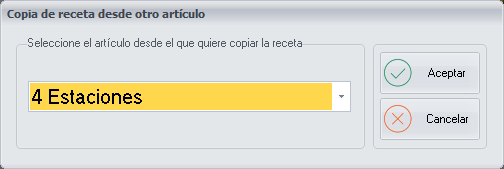
Click **Ok** and the recipe is filled in with the dough, the tomato, the mozzarella and the box. Now add what makes the Campesina different. For each ingredient, select it in the top list, click **Add**, choose **Selectable Ingredient**, enter the quantity and click **Ok**:
| Ingredient | Type | Quantity |
|---|---|---|
| Bacon | Selectable | 0.040 kg |
| Mushrooms | Selectable | 0.040 kg |
| Onion | Selectable | 0.030 kg |
| Egg | Selectable | 1 unit |
Click **Save**.
Copy from… only offers items of the same family group. That is why it is useful to have in each family group a simple base pizza, with what they all contain.
If this message appears when you save, you still have to add the ingredient to the family group (step 1):

## 4. Repeat in the other sizes
Each size is a different item, in its own family group. For the family size, repeat steps 1 to 3 in `Family Pizzas`, with its code (`PFCA`), its price and its quantities.
In Items → Family Groups, the Recipe wizard button lets you create items and copy recipes from one family group to another.
## 5. Check the result
1. Open [Orders](https://docs.pizzagest.com/books/pizzagest-O9f/page/orders) and search for the pizza by its code, `PMCA`. Check the price and that its ingredients appear.
2. If you sell online, run an [Export to Web](https://docs.pizzagest.com/books/pizzagest-O9f/page/export-to-web) ticking *Items* and *Recipes of the items*.
## Related tasks
- **Changing the price**: select the item, click **Modify** and change the price. To raise or lower the prices of a whole family group at once there is the **Prices** button ([Sales Items Price Change](https://docs.pizzagest.com/books/pizzagest-O9f/page/change-price-of-sales-items)).
- **Removing an item from the menu**: instead of deleting it, untick **The item can be sold**. It stops being sold and you can bring it back whenever you want.
# Adding an extra ingredient
When you want to offer **a new ingredient**, so that the customer can order it as an extra or so that you can put it in the recipe of a product, you have to register it in the stockroom and add it to the family groups in which it is going to be used.
Example. You want to offer rocket as an extra on the pizzas (1.00 € on the medium ones and 1.50 € on the family ones) and have the Veggie Pizza include it as standard.
The steps:
1. Register the ingredient in the stockroom.
2. Add it to each family group, with its price.
3. Put it in the recipe of the items that contain it.
4. Check the result.
## 1. Register the ingredient in the stockroom
Go to **Items → Inventory Items**. If rocket is already in the list, go on to step 2. If not, click **Add**.
- **Item ID**: `RU`.
- **Description**: `Rocket`.
- **Recipe unit**: `kg`.
- **Stock unit**: `bag`.
- **Equivalence**: if the bag is half a kilo, `0.5`.
- **Inventory item type**: `Product`.
- **Kitchen order**: the layer in which the ingredient is placed when preparing the product. It sorts the ingredients on the kitchen ticket.
- **Taxes**: the VAT you buy it with.
Click **Allergens** if it has any and then **Save**.
All the fields are in [Add/Modify Inventory Items](https://docs.pizzagest.com/books/pizzagest-O9f/page/addmodify-inventory-items).
## 2. Add it to each family group
An ingredient cannot be ordered or used in a recipe until it is among the **inventory items of the family group**. And you have to do it **in each family group** in which it is going to be offered, because each one has its own quantity and price.
Go to **Items → Family Groups**, select `Medium Pizzas` and click **Inventory Items**.
Select `Rocket` in the top list and click **Add**:
- **Denomination**: the name the customer and the employee will see: `Rocket`.
- **Grouping**: the block in which it appears when taking the order, for example `Toppings`.
- **Quantity**: what a medium pizza contains: `0.020` kg.
- **Screen order**: the position in which the ingredient appears when taking the order.
- **Price when the ingredient is added**: what the customer pays for the extra. `1.00` for dine-in and for delivery.
- **Price when WITHOUT mode is chosen**: what is deducted if the customer removes it from a pizza that contains it. It is written **as a negative number** (`-1.00`); if you do not want to deduct anything, `0`.
- **The ingredient can be promoted**: tick it if it can be one of the promoted ingredients of the family group.
Click **Save** in this window and **Save** again on the screen of the inventory items of the family group.
Repeat in `Family Pizzas` with its values:
| Family Group | Quantity | Price when added | Price in WITHOUT mode |
|---|---|---|---|
| Medium Pizzas | 0.020 kg | 1.00 € | -1.00 € |
| Family Pizzas | 0.035 kg | 1.50 € | -1.50 € |
From this moment on, rocket can be ordered as an extra on any pizza of those two family groups.
All the fields are in [Add/Modify Inventory Items in a Family Group](https://docs.pizzagest.com/books/pizzagest-O9f/page/addmodify-inventory-items-in-a-family-group).
## 3. Put it in the recipe of an item
For the Veggie Pizza to include rocket as standard, go to **Items → Sales Items**, select `Medium Veggie Pizza` and click **Recipe**.
Select `Rocket` in the top list and click **Add**:
- **Ingredient type**: **Selectable Ingredient**, so that the customer can order the pizza without rocket.
- **Quantity**: `0.020` kg.
Click **Ok** and then **Save**. Repeat with the `Family Veggie Pizza` and its quantity.
If the quantity you put of an ingredient changes later on, you do not need to open the recipes one by one: in the window of step 2, the In all items button changes the quantity of that ingredient in the recipes of the whole family group.
## 4. Check the result
1. Open [Orders](https://docs.pizzagest.com/books/pizzagest-O9f/page/orders), choose any medium pizza and check that **Rocket** can be added to it and that it adds 1.00 €.
2. Choose the Medium Veggie Pizza and check that it contains it and that it can be ordered without it.
3. If you sell online, run an [Export to Web](https://docs.pizzagest.com/books/pizzagest-O9f/page/export-to-web) ticking *Major Groups and Family Groups*, *Recipes of the items* and *Ingredients*.
## If something goes wrong
| What happens | Why | Solution |
|---|---|---|
| When you save the recipe, PizzaGest warns that the ingredient is not included in the family group. | The ingredient is selectable and is missing from the inventory items of the family group. | Add it to the family group (step 2) and save the recipe again. |
| The **Inventory Items** button of the family group is disabled. | The major group does not allow ingredients to be chosen. | In **Items → Major Groups**, modify the major group and tick **Ingredients can be chosen in the items**. |
| It does not let you delete an inventory item from the family group. | It is in the recipe of some item of that family group. | Remove it from those recipes first. |
| It does not let you delete an inventory item. | It has been used in some recipe. | If it is no longer going to be used, untick **Inventory item available** on its screen. |
| You have changed one ingredient for another (another vendor, another format). | | Use **Replace Inventory Items** instead of redoing the recipes ([Replace Inventory Item](https://docs.pizzagest.com/books/pizzagest-O9f/page/replace-inventory-item)). |
# Creating a promotion
A **promotion** is a set of items with a special price: a discount, a free item or a gift. PizzaGest applies it by itself when the order meets the conditions, or lets the employee choose it.
Example. From Monday to Thursday, 2x1 on medium pizzas: the customer takes two and pays for one.
The steps:
1. Create the promotion and choose its type.
2. Define the lines of the promotion.
3. Set when and where it applies.
4. Review the options.
5. Test it.
## 1. Create the promotion and choose its type
Go to **Items → Sales Promotions** and click **Add**. The screen has three tabs; start with **Promotion data**.
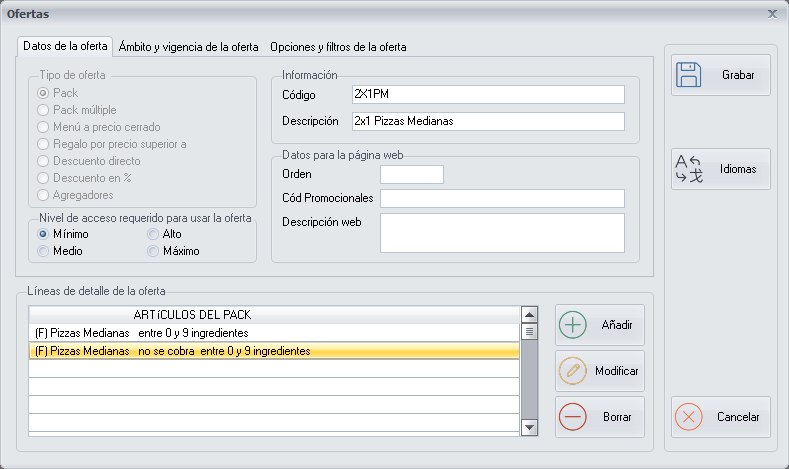
First choose the **Promotion type**:
| Type | How it works | Example |
|---|---|---|
| **Pack** | It is applied when the order has **all** the lines of the promotion. | 2x1; for every 2 pizzas, one at 50% |
| **Multiple pack** | Each line is an independent promotion. | 50% discount for the staff |
| **Fixed-price menu** | Several items for a fixed price. | 10 pizzas for 80 € |
| **Gift for price higher than** | A gift when the bill exceeds an amount. | A free drink on orders over 20 € |
| **Direct discount** | A fixed amount off the total. | 5 € off for Black Friday |
| **Discount in %** | A percentage off the total. | 50% on the customer's birthday |
For our 2x1, choose **Pack** and fill in:
- **Code**: `2X1PM`.
- **Description**: `2x1 Medium Pizzas`. It is the text printed on the customer's ticket.
- **Access level required to use the promotion**: `Minimum`, so that any employee can apply it.
## 2. Define the lines of the promotion
The **detail lines** say which items there have to be in the order. A 2x1 is two lines: one pizza that is charged and another that is not.
Click **Add** next to the list of lines. The **Item selection wizard** opens and asks its questions screen by screen. The first thing is which items the line affects:
| Item type | The line applies to… |
|---|---|
| **Item** | One or several specific items. |
| **Family Group** | All the items of one or several family groups. |
| **Major Group** | All the family groups of a major group: for example, pizzas of any size. |
For the first line of our 2x1:
1. **Choose item type**: tick **Family Group**, select `Medium Pizzas` and add it with **Include element**. Click **Next**.
2. **Item exceptions** and **Ingredient exceptions**: they are for leaving some item or ingredient out of the promotion. Do not change anything and click **Next**.
3. **Min/Max ingredients**: how many ingredients the pizza can have to qualify for the promotion. Leave it from `0` to `9`.
4. **Gifts and discounts**: to the question **Must the item be charged?** answer yes, and to **Is a discount applied to the item?**, no.
Click **Finish** and repeat for the second line, the same as the first one but answering that the item **is not charged**.
The promotion ends up like this:
```
(F) Medium Pizzas between 0 and 9 ingredients
(F) Medium Pizzas not charged between 0 and 9 ingredients
```
The order of the lines matters. To apply the promotions, PizzaGest sorts the products of the order from the most expensive to the cheapest. That is why the line that is charged goes first: the customer pays for the most expensive pizza and the free one is the cheapest.
The second one at 50%. It is the same promotion with one change: in the second line the item is charged, but you answer yes to Is a discount applied to the item? and, on the next screen, choose a percentage discount with value 50.
All the screens of the wizard are in [Item selection wizard](https://docs.pizzagest.com/books/pizzagest-O9f/page/item-selection-wizard).
## 3. Set when and where it applies
Go to the **Order type and validity of the promotion** tab.
- **Validity dates**: from when and until when. For a promotion with no end date, enter a date far in the future.
- **Order type**: which orders it is valid for (Dine-in, Delivery, Pick-up, Take-away…).
- **Source**: where it can be ordered from (Branch, Web, Call Center, Kiosk…).
- **Days of the week**: tick Monday to Thursday. You can also include or exclude public holidays and the days before them (public holidays are defined in the [Public Holidays Calendar](https://docs.pizzagest.com/books/pizzagest-O9f/page/public-holidays-calendar)).
- **Schedule**: if the promotion is only valid at certain times, you can set up to two time slots.
## 4. Review the options
The **Options and filters of the promotion** tab holds the special conditions. The most used ones:
| Option | What it does |
|---|---|
| **The promotion can only be applied once per order** | Even if they order four pizzas, only one is free. |
| **Promotion must be applied manually** | The promotion is not applied by itself: the employee chooses it when charging. |
| **It can only be applied once per customer** | For welcome promotions. |
| **The promotion is hidden on the web** | It is not shown in the online store. |
| **Minimum order amount to apply** | The promotion is only valid from that amount upwards. |
If you do not tick anything, the promotion is applied automatically, as many times as it fits in the order.
Click **Save**. All the options are in [Add/Modify Promotions](https://docs.pizzagest.com/books/pizzagest-O9f/page/addmodify-promotions).
## 5. Test it
1. Open [Orders](https://docs.pizzagest.com/books/pizzagest-O9f/page/orders) and place a test order with two medium pizzas, on a day and with an order type for which the promotion is valid.
2. When you click **Charge**, the [Applicable Promotions](https://docs.pizzagest.com/books/pizzagest-O9f/page/applicable-promotions) screen appears, with the promotion applied and the customer's **savings**.

3. If you sell online, run an [Export to Web](https://docs.pizzagest.com/books/pizzagest-O9f/page/export-to-web) ticking **Export promotions**. For the promotion to appear on the website it must have the **Web** source ticked.
## If the promotion is not applied
| Check | Where |
|---|---|
| That today is within the dates, the days and the schedule. | **Order type and validity of the promotion** tab |
| That the order is of a ticked order type and source. | **Order type and validity of the promotion** tab |
| That **Promotion must be applied manually** is not ticked (in that case you have to choose it with **Choose promotion** when charging). | **Options and filters of the promotion** tab |
| That the pizzas do not have more ingredients than the maximum of the line. | Detail lines of the promotion |
| That your access level reaches the one the promotion requires. | **Promotion data** tab |
PizzaGest never applies more than one promotion to the same product.
# Keeping stock under control
To control the cost of your raw materials you need to know **how much product is really used** and compare it with what should have been used. PizzaGest does that calculation if you give it three things: the recipes, the stockroom movements and the inventories.
Example. Let's follow the mozzarella for a week: it comes in with a delivery note, a pizza gets burnt, a pack expires and on Sunday you count what is left.
## Why sales are not enough
The consumption of an ingredient is not just what the products sold contain:
```
Real consumption = recipes of the products sold + losses + wastes + outgoings + theft
```
Recipes, losses, wastes and outgoings can be recorded in PizzaGest. Theft cannot. That is why the way to detect it is to **record everything else** and compare it with what is really in the stockroom.
What you have to keep up to date:
1. The **recipes** of the sales items.
2. The vendors' **delivery notes**.
3. The **outgoings, losses and wastes**.
4. The **inventories**.
## 1. Get the recipes right
Each sale deducts from the stockroom what the recipe of the item says. If the recipe says one quantity of mozzarella and you actually put more, the theoretical stock will never match the real one.
Recipes are explained in [Adding an item to an existing family group](https://docs.pizzagest.com/books/pizzagest-O9f/page/adding-an-item-to-an-existing-family-group) and in [Recipe of Sale Items](https://docs.pizzagest.com/books/pizzagest-O9f/page/recipe-of-sale-items).
## 2. Enter the vendors' delivery notes
Each delivery from the vendor is recorded with its delivery note. Go to **Items → Vendor Invoices**.
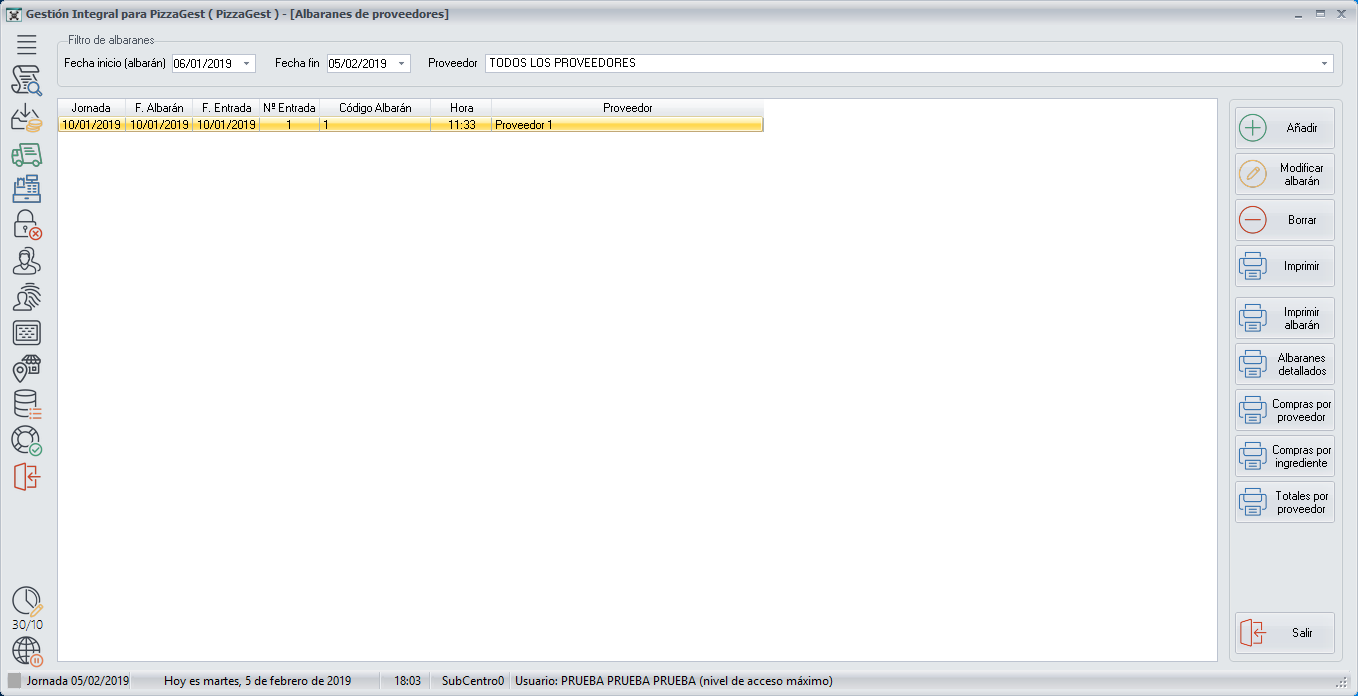
1. Click **Add**.
2. Fill in the dates, the vendor and the payment method. The vendors and the payment methods have to be registered beforehand.
3. Click **Add**, select the ingredient (mozzarella) and fill in the quantity, the price and the discount. Repeat with each line of the delivery note.
4. Check that the total amount matches the vendor's and click **Enter Goods**.
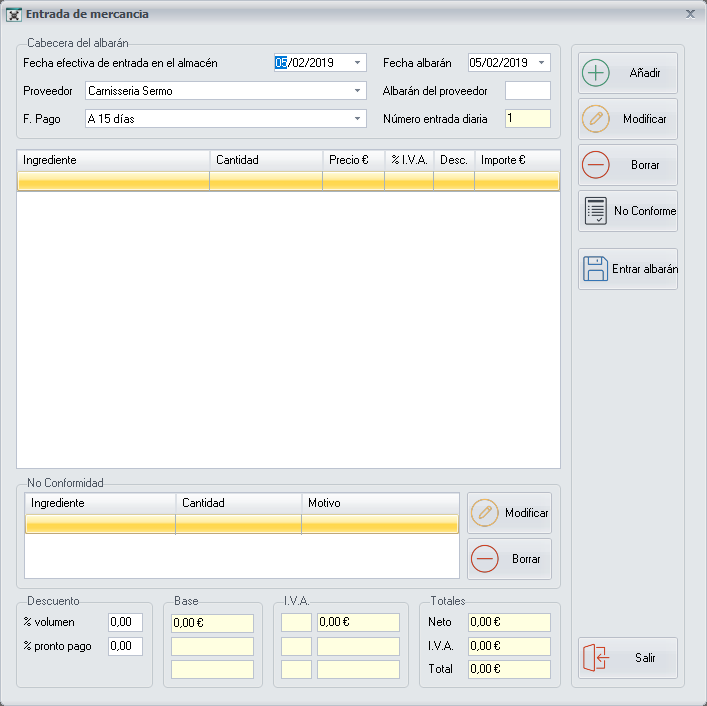
When the goods are entered, the stock, the purchase price and the average purchase price of the ingredient are updated.
Always check the quantities and the units before entering the goods. A mistake here throws the stock out.
All the fields are in [Vendor Invoices](https://docs.pizzagest.com/books/pizzagest-O9f/page/vendor-invoices) and [Add/Modify Vendor Invoices](https://docs.pizzagest.com/books/pizzagest-O9f/page/addmodify-vendor-invoices).
## 3. Record what leaves without being sold
| What has happened | Example | Where it is recorded |
|---|---|---|
| **Stockroom outgoing**: product leaves without a sale and without a loss. | You take mozzarella to another branch. | **Items → Stockroom → Outgoings and Losses**, **Stockroom outgoing** button |
| **Loss**: an ingredient that cannot be used. | An expired pack, the trimmings. | **Items → Stockroom → Outgoings and Losses**, **Outgoing due to losses** button |
| **Waste**: an item already prepared that never gets consumed. | A pizza that is burnt or falls on the floor. | **Items → Stockroom → Wastes** |
The screens are explained in [Stockroom outgoing or Outgoing due to losses](https://docs.pizzagest.com/books/pizzagest-O9f/page/stockroom-outgoing-or-outgoing-due-to-losses) and [Food waste](https://docs.pizzagest.com/books/pizzagest-O9f/page/food-waste).
When you cancel an order or modify an order that has already been prepared, PizzaGest returns all its products to the stockroom. Whatever cannot be used (a pizza already made, for example) has to be recorded as waste. Otherwise, the theoretical stock will not match the real one.
If you make a mistake when recording an outgoing, a loss or a waste, undo it in **Items → Stockroom → Undo Stockroom Transfers**: choose the type of movement, the shift day on which it was made and, if necessary, the employee's code ([Undo Stockroom Transfers](https://docs.pizzagest.com/books/pizzagest-O9f/page/undo-stockroom-transfers)).
## 4. Take inventories
In the inventory you count what there is and PizzaGest compares it with what there should be. Go to **Items → Inventories** and choose the type:
| Type | What is counted | How often |
|---|---|---|
| **Partial Inventory** | The ingredients you have marked to be checked daily. | Every day |
| **General Inventory** | All the stock in the stockroom. | Normally, once a month |
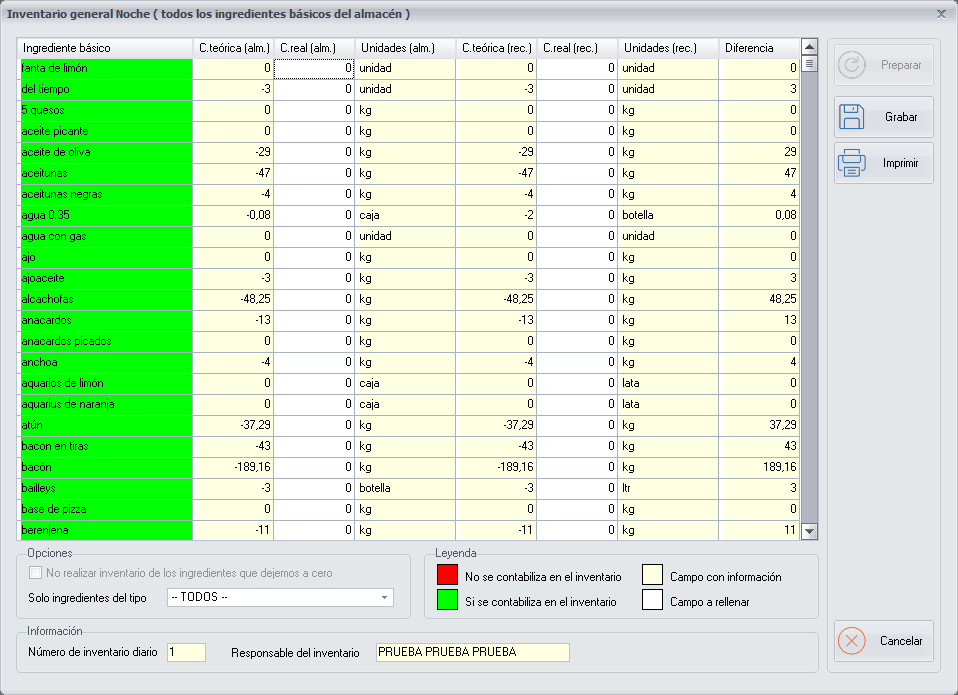
Each ingredient is counted in two columns, and you do not have to convert anything:
- **Real qty. (stock)**: what you counted in stock units.
- **Real qty. (use)**: what you counted in units of use.
Example. If you count 3 whole blocks of mozzarella and 1 kg loose, enter 3 in the stock column and 1 in the use column.
To count comfortably, print the inventory just as it appears on screen, write down the quantities by hand and then type them in the same order.
So that the quantities are not copied. The Theoretical qty. (stock) column can be hidden from employees: in the access level definition, the option *View theoretical quantities of inventories* must require a higher level than the one for entering inventories.
Which ingredients go into each partial inventory is decided on the inventory item's screen ([Add/Modify Inventory Items](https://docs.pizzagest.com/books/pizzagest-O9f/page/addmodify-inventory-items), **Inventories** section). The rest of the options are in [Inventories](https://docs.pizzagest.com/books/pizzagest-O9f/page/inventories).
## 5. See the result
With everything recorded, the reports in the **Items** menu let you compare the theoretical with the real:
- [Report of Theoretical and Real Consumption](https://docs.pizzagest.com/books/pizzagest-O9f/page/report-of-theoretical-and-actual-consumption)
- [Report of Inventories](https://docs.pizzagest.com/books/pizzagest-O9f/page/report-of-inventories)
- [Report of Outgoings, Losses and Wastes](https://docs.pizzagest.com/books/pizzagest-O9f/page/report-of-outgoings-losses-and-wastes)