# Add Street in Google Maps
From this screen you add [streets](https://docs.pizzagest.com/books/pizzagest-O9f/page/streets) that appear in Google Maps to your [street map](https://docs.pizzagest.com/books/pizzagest-O9f/page/street-directories).
**How to get here:** **Google Maps** button on the [Customer Management](https://docs.pizzagest.com/books/pizzagest-O9f/page/customer-management) screen.
This screen only works if you have a Google API key set on the Add/Modify Franchisees screen.
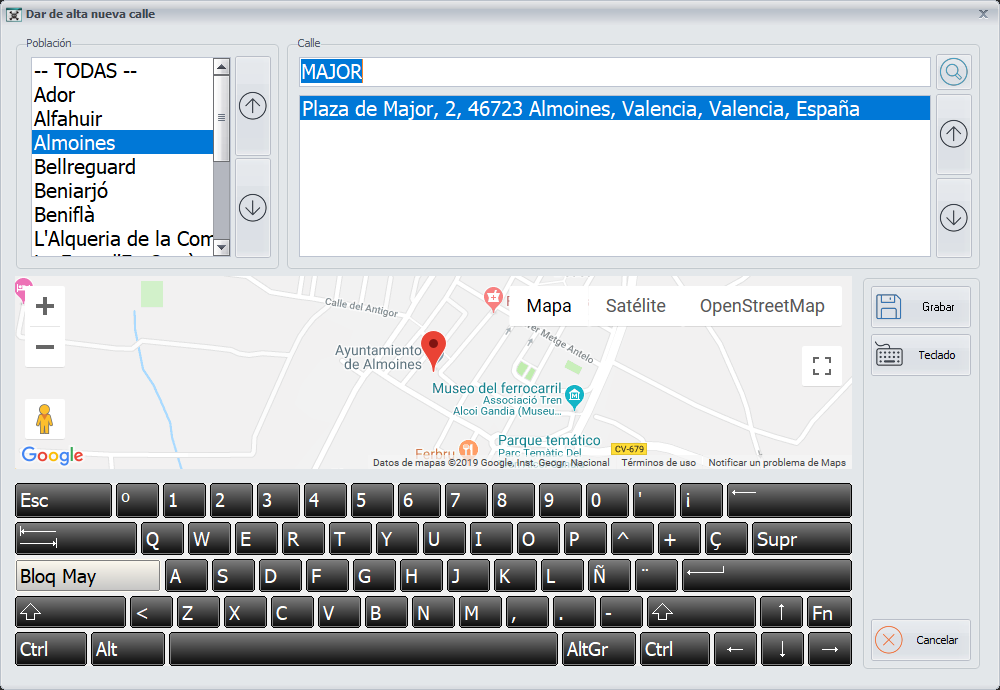
## Adding a street
1. On the left you see all the cities of the [zones](https://docs.pizzagest.com/books/pizzagest-O9f/page/zones) of the [area](https://docs.pizzagest.com/books/pizzagest-O9f/page/areas) your [branch](https://docs.pizzagest.com/books/pizzagest-O9f/page/branches) belongs to. Choose the city.
2. Type the name of the street you are looking for. The matches Google finds for that name appear below.
3. If you find the street you want, select it and click **Save**.
4. Next, choose the [zone](https://docs.pizzagest.com/books/pizzagest-O9f/page/zones) on the [Choose Zone in Google Maps](https://docs.pizzagest.com/books/pizzagest-O9f/page/choose-zone-in-google-maps) screen. The street is added automatically.
## Buttons
- **Keyboard**: it is at the bottom of the screen. It shows or hides the keyboard.
- **Save**: click it after selecting the street you want.