# Adding an item to an existing family group
This is the most common case: **a new product in a family group you already have**. The major group, the family group and almost all the ingredients already exist, so you only have to create the item and its recipe.
Example. You add the Medium Campesina Pizza to the menu: tomato, mozzarella, bacon, mushrooms, onion and egg. It will cost 9.50 €.
The steps:
1. Check that the ingredients are in the family group.
2. Create the sales item.
3. Copy a similar recipe and complete it.
4. Repeat in the other sizes.
5. Check the result.
## 1. Check the ingredients
Go to **Items → Family Groups**, select `Medium Pizzas` and click **Inventory Items**.
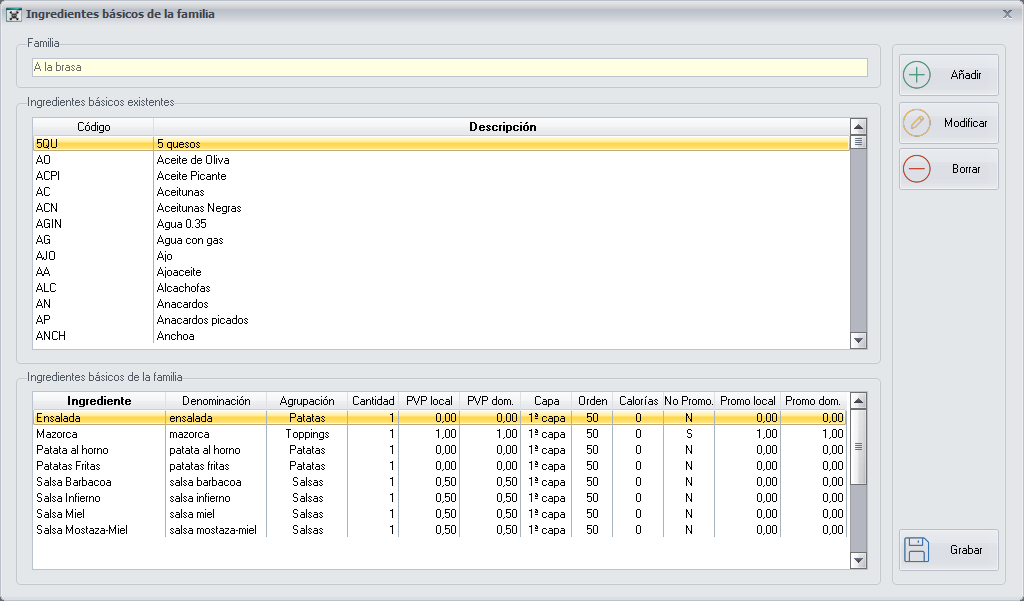
All the ingredients of the new pizza must be in the bottom list. Bacon, mushrooms and onion are already there, because other pizzas use them. The **egg** is not.
- If they are all there, go on to step 2.
- If any is missing, add it now following [Adding an extra ingredient](https://docs.pizzagest.com/books/pizzagest-O9f/page/adding-an-extra-ingredient) (steps 1 and 2) and come back here.
Do not skip this check. If an ingredient is not in the family group, PizzaGest will not let you save the recipe in step 3.
## 2. Create the sales item
Go to **Items → Sales Items** and click **Add**.
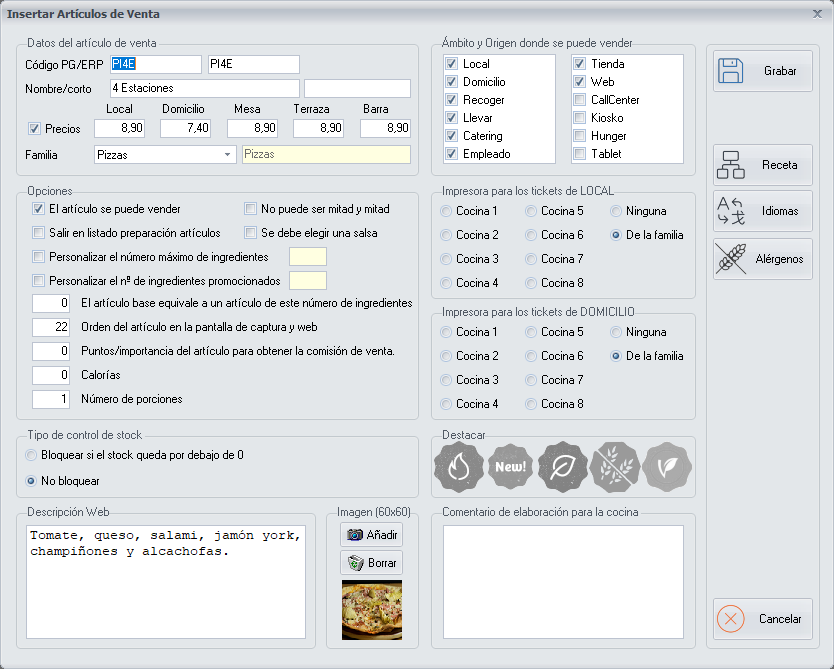
- **Code**: follow the same pattern as the rest of the family group. If the medium pizzas start with `PM`, enter `PMCA`.
- **Short name**: `Medium Campesina Pizza`.
- **Prices**: `9.50` for each order type (Dine-in, Delivery, Table, Terrace, Bar).
- **Family Group**: `Medium Pizzas`. The major group is filled in automatically.
- **Order type and Source where it can be sold**: where and from where it can be ordered.
Other options worth knowing:
| Option | What it is for |
|---|---|
| **Cannot be half and half** | For items that cannot be split, such as a calzone pizza. |
| **Order of the item on the order screen and web** | The position of the pizza within its family group. |
| **Highlight** | Marks the item as spicy, **new**, gluten-free, vegetarian or vegan. |
| **Web description** and **Image** | The text and the photo shown on the website and on the orders screen. |
| **The base item is equivalent to an item with this number of ingredients** | How many ingredients this pizza "counts" as in the promotions that depend on the number of ingredients. If the ingredients of the recipe are selectable, leave it at `0`. |
Click **Save**. All the fields are in [Add/Modify Sales Items](https://docs.pizzagest.com/books/pizzagest-O9f/page/addmodify-sales-items).
## 3. Copy a similar recipe and complete it
In the list of items, select the new pizza and click **Recipe**.
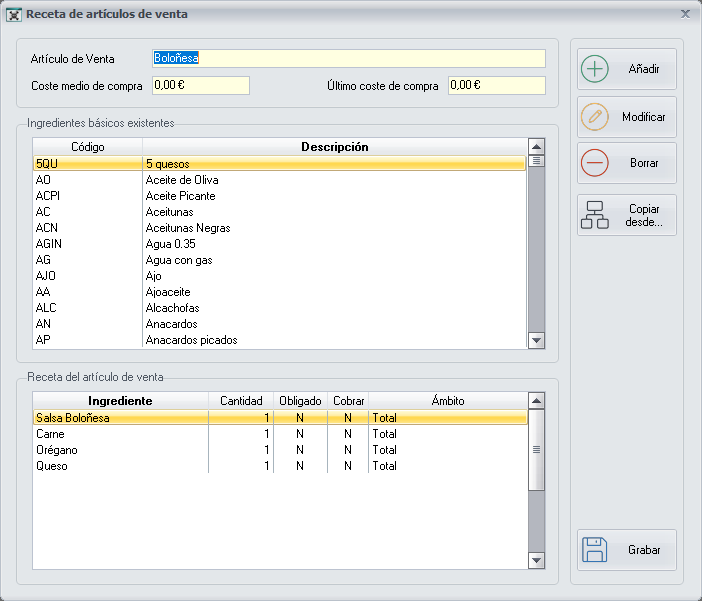
So as not to start from scratch, click **Copy from…** and choose the simplest pizza of the same family group, for example the `Medium Margherita Pizza`:
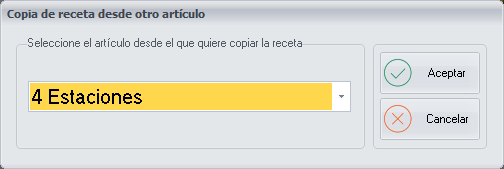
Click **Ok** and the recipe is filled in with the dough, the tomato, the mozzarella and the box. Now add what makes the Campesina different. For each ingredient, select it in the top list, click **Add**, choose **Selectable Ingredient**, enter the quantity and click **Ok**:
| Ingredient | Type | Quantity |
|---|---|---|
| Bacon | Selectable | 0.040 kg |
| Mushrooms | Selectable | 0.040 kg |
| Onion | Selectable | 0.030 kg |
| Egg | Selectable | 1 unit |
Click **Save**.
Copy from… only offers items of the same family group. That is why it is useful to have in each family group a simple base pizza, with what they all contain.
If this message appears when you save, you still have to add the ingredient to the family group (step 1):

## 4. Repeat in the other sizes
Each size is a different item, in its own family group. For the family size, repeat steps 1 to 3 in `Family Pizzas`, with its code (`PFCA`), its price and its quantities.
In Items → Family Groups, the Recipe wizard button lets you create items and copy recipes from one family group to another.
## 5. Check the result
1. Open [Orders](https://docs.pizzagest.com/books/pizzagest-O9f/page/orders) and search for the pizza by its code, `PMCA`. Check the price and that its ingredients appear.
2. If you sell online, run an [Export to Web](https://docs.pizzagest.com/books/pizzagest-O9f/page/export-to-web) ticking *Items* and *Recipes of the items*.
## Related tasks
- **Changing the price**: select the item, click **Modify** and change the price. To raise or lower the prices of a whole family group at once there is the **Prices** button ([Sales Items Price Change](https://docs.pizzagest.com/books/pizzagest-O9f/page/change-price-of-sales-items)).
- **Removing an item from the menu**: instead of deleting it, untick **The item can be sold**. It stops being sold and you can bring it back whenever you want.