# Add/Modify Messages
On this screen you set up the message an employee receives when they [Clock In/Out](https://docs.pizzagest.com/books/pizzagest-O9f/page/clock-inout).
**How to get here:** **Add** or **Modify** button on the [Messages](https://docs.pizzagest.com/books/pizzagest-O9f/page/messages) screen.
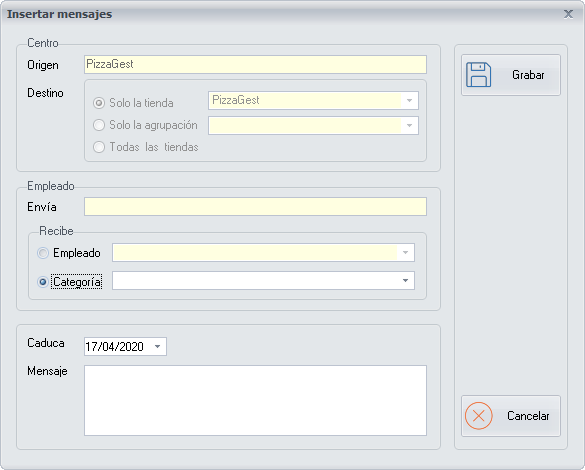
## Center
- **Source**: the branch from which you are generating the message.
- **Destination**: choose whether you send the message to a single [branch](https://docs.pizzagest.com/books/pizzagest-O9f/page/branches) (choose it from the drop-down list), to a [branch grouping](https://docs.pizzagest.com/books/pizzagest-O9f/page/branch-grouping) (choose it from the drop-down list) or to all the branches.
## Employee
- **Sends**: the name of the employee who has set up the message. It is the employee who, at the moment of creating the message, is identified in the system through the [Restricted options](https://docs.pizzagest.com/books/pizzagest-O9f/page/sign-inout).
### Receives
- **Employee**: tick this option to send the message to a specific [employee](https://docs.pizzagest.com/books/pizzagest-O9f/page/branch-employees), and choose them from the drop-down list.
- **Professional standing**: tick this option to send the message to all the employees with the same [professional standing](https://docs.pizzagest.com/books/pizzagest-O9f/page/professional-standings), and choose it from the drop-down list.
## Expiry and message
- **Expires**: the date until which the message appears to the employee or employees you have selected.
- **Message**: in this text area, write the message that appears on the **Pending messages** screen to the employee or employees you have selected, when they [Clock In/Out](https://docs.pizzagest.com/books/pizzagest-O9f/page/clock-inout).
If the employee validates the message on the Pending messages screen, the message no longer appears to them when they clock in/out, even if the expiry date has not been reached.
## Buttons
- **Save**: click it when you have finished setting up the message.
- **Cancel**: closes the screen without making any changes.