# Choose order
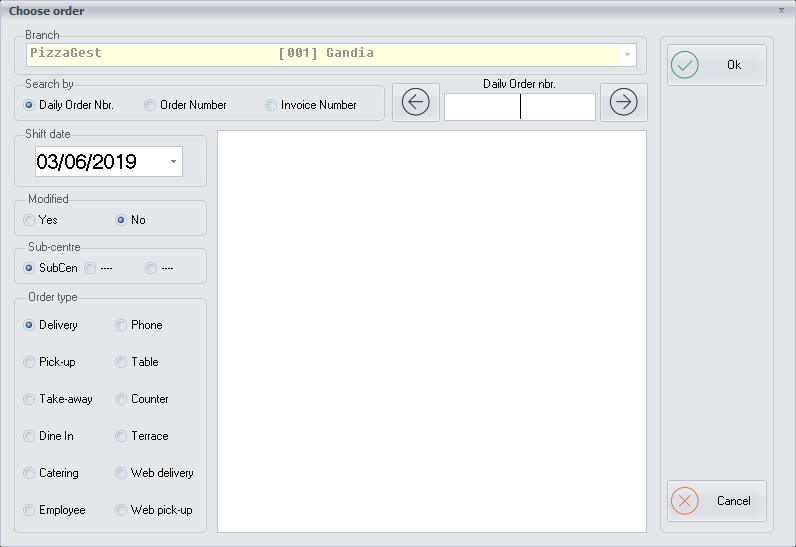
Once we have clicked on the Menu option **Consult** or **Orders-\>Check
Orders**, a screen like the one we can see below will appear:
The order numbers are generated randomly so in that way nobody
(especially from the competition) can know when we take an order, how
many orders we have generated daily. Delivery orders will have a number
between 500 and 600 and the other types of orders between 1 and 100.
We can search for an order in three different ways:
**Daily Order Number**:
We will choose within the Shift day, with the help of the
calendar, the day we want to see the orders.
We can choose if the orders were modified.
And finally we will mark the order type of the order we want to
choose.
**Order Number**:
We can search for a specific ticket, if we enter the ticket number that
PizzaGest has generated internally.
**Invoice Number**:
When choosing this option, we will have to enter the invoice number.
Once we have chosen the ticket or invoice, we will press the **OK**
button and we will go to the next screen **Check
Order**
The **Cancel** button allows us to exit of the screen without making any
changes.