# Creating a promotion
A **promotion** is a set of items with a special price: a discount, a free item or a gift. PizzaGest applies it by itself when the order meets the conditions, or lets the employee choose it.
Example. From Monday to Thursday, 2x1 on medium pizzas: the customer takes two and pays for one.
The steps:
1. Create the promotion and choose its type.
2. Define the lines of the promotion.
3. Set when and where it applies.
4. Review the options.
5. Test it.
## 1. Create the promotion and choose its type
Go to **Items → Sales Promotions** and click **Add**. The screen has three tabs; start with **Promotion data**.
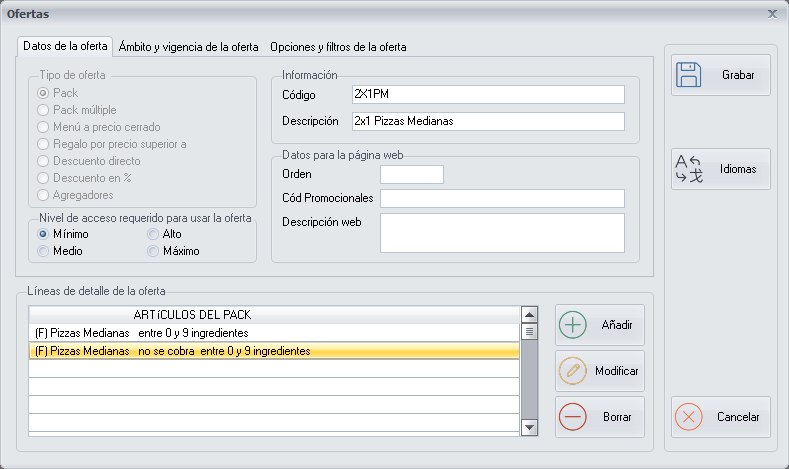
First choose the **Promotion type**:
| Type | How it works | Example |
|---|---|---|
| **Pack** | It is applied when the order has **all** the lines of the promotion. | 2x1; for every 2 pizzas, one at 50% |
| **Multiple pack** | Each line is an independent promotion. | 50% discount for the staff |
| **Fixed-price menu** | Several items for a fixed price. | 10 pizzas for 80 € |
| **Gift for price higher than** | A gift when the bill exceeds an amount. | A free drink on orders over 20 € |
| **Direct discount** | A fixed amount off the total. | 5 € off for Black Friday |
| **Discount in %** | A percentage off the total. | 50% on the customer's birthday |
For our 2x1, choose **Pack** and fill in:
- **Code**: `2X1PM`.
- **Description**: `2x1 Medium Pizzas`. It is the text printed on the customer's ticket.
- **Access level required to use the promotion**: `Minimum`, so that any employee can apply it.
## 2. Define the lines of the promotion
The **detail lines** say which items there have to be in the order. A 2x1 is two lines: one pizza that is charged and another that is not.
Click **Add** next to the list of lines. The **Item selection wizard** opens and asks its questions screen by screen. The first thing is which items the line affects:
| Item type | The line applies to… |
|---|---|
| **Item** | One or several specific items. |
| **Family Group** | All the items of one or several family groups. |
| **Major Group** | All the family groups of a major group: for example, pizzas of any size. |
For the first line of our 2x1:
1. **Choose item type**: tick **Family Group**, select `Medium Pizzas` and add it with **Include element**. Click **Next**.
2. **Item exceptions** and **Ingredient exceptions**: they are for leaving some item or ingredient out of the promotion. Do not change anything and click **Next**.
3. **Min/Max ingredients**: how many ingredients the pizza can have to qualify for the promotion. Leave it from `0` to `9`.
4. **Gifts and discounts**: to the question **Must the item be charged?** answer yes, and to **Is a discount applied to the item?**, no.
Click **Finish** and repeat for the second line, the same as the first one but answering that the item **is not charged**.
The promotion ends up like this:
```
(F) Medium Pizzas between 0 and 9 ingredients
(F) Medium Pizzas not charged between 0 and 9 ingredients
```
The order of the lines matters. To apply the promotions, PizzaGest sorts the products of the order from the most expensive to the cheapest. That is why the line that is charged goes first: the customer pays for the most expensive pizza and the free one is the cheapest.
The second one at 50%. It is the same promotion with one change: in the second line the item is charged, but you answer yes to Is a discount applied to the item? and, on the next screen, choose a percentage discount with value 50.
All the screens of the wizard are in [Item selection wizard](https://docs.pizzagest.com/books/pizzagest-O9f/page/item-selection-wizard).
## 3. Set when and where it applies
Go to the **Order type and validity of the promotion** tab.
- **Validity dates**: from when and until when. For a promotion with no end date, enter a date far in the future.
- **Order type**: which orders it is valid for (Dine-in, Delivery, Pick-up, Take-away…).
- **Source**: where it can be ordered from (Branch, Web, Call Center, Kiosk…).
- **Days of the week**: tick Monday to Thursday. You can also include or exclude public holidays and the days before them (public holidays are defined in the [Public Holidays Calendar](https://docs.pizzagest.com/books/pizzagest-O9f/page/public-holidays-calendar)).
- **Schedule**: if the promotion is only valid at certain times, you can set up to two time slots.
## 4. Review the options
The **Options and filters of the promotion** tab holds the special conditions. The most used ones:
| Option | What it does |
|---|---|
| **The promotion can only be applied once per order** | Even if they order four pizzas, only one is free. |
| **Promotion must be applied manually** | The promotion is not applied by itself: the employee chooses it when charging. |
| **It can only be applied once per customer** | For welcome promotions. |
| **The promotion is hidden on the web** | It is not shown in the online store. |
| **Minimum order amount to apply** | The promotion is only valid from that amount upwards. |
If you do not tick anything, the promotion is applied automatically, as many times as it fits in the order.
Click **Save**. All the options are in [Add/Modify Promotions](https://docs.pizzagest.com/books/pizzagest-O9f/page/addmodify-promotions).
## 5. Test it
1. Open [Orders](https://docs.pizzagest.com/books/pizzagest-O9f/page/orders) and place a test order with two medium pizzas, on a day and with an order type for which the promotion is valid.
2. When you click **Charge**, the [Applicable Promotions](https://docs.pizzagest.com/books/pizzagest-O9f/page/applicable-promotions) screen appears, with the promotion applied and the customer's **savings**.

3. If you sell online, run an [Export to Web](https://docs.pizzagest.com/books/pizzagest-O9f/page/export-to-web) ticking **Export promotions**. For the promotion to appear on the website it must have the **Web** source ticked.
## If the promotion is not applied
| Check | Where |
|---|---|
| That today is within the dates, the days and the schedule. | **Order type and validity of the promotion** tab |
| That the order is of a ticked order type and source. | **Order type and validity of the promotion** tab |
| That **Promotion must be applied manually** is not ticked (in that case you have to choose it with **Choose promotion** when charging). | **Options and filters of the promotion** tab |
| That the pizzas do not have more ingredients than the maximum of the line. | Detail lines of the promotion |
| That your access level reaches the one the promotion requires. | **Promotion data** tab |
PizzaGest never applies more than one promotion to the same product.