# Print Batches
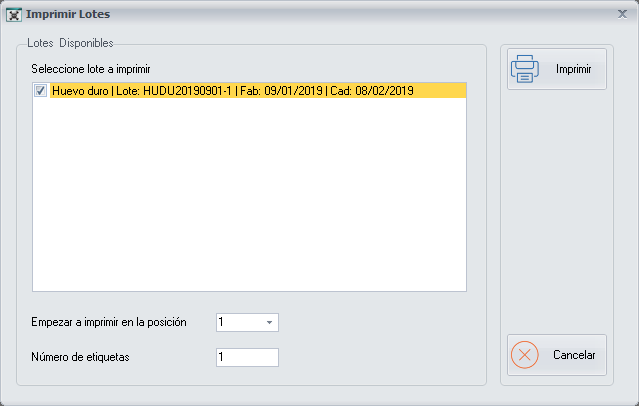
From this screen you generate a label for each inventory item produced, which is called a **Batch**. The label shows the batch code, the production date and the expiry date.
**How to get here:** **Batch Labels** button on the [Recipe Production](https://docs.pizzagest.com/books/pizzagest-O9f/page/recipe-production) screen.
## Printing the labels
1. Select the batch or batches you want to print.
2. Indicate the position from which you want to start printing the labels.
3. Indicate the number of labels to print.
4. Click **Print**. A **Report** is generated with all the labels to print from the indicated position.
The labels are printed on Apli sheets of 2 columns with 8 labels in each column. You indicate the starting position because you may already have used some labels of the sheet.
## Buttons
- **Print**: generates the report with the labels.
- **Cancel**: closes the screen without making any changes.