
Orders
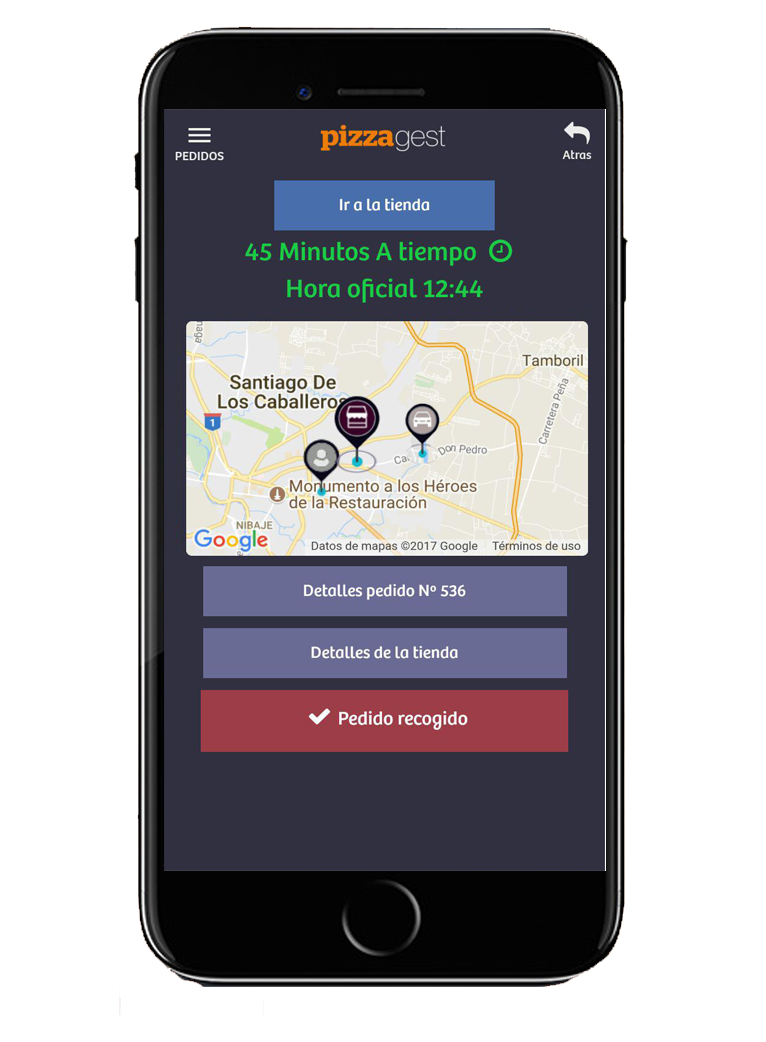
ORDERS is the screen you use during the delivery. It can only be opened while you are online (see Main screen).
The assigned orders
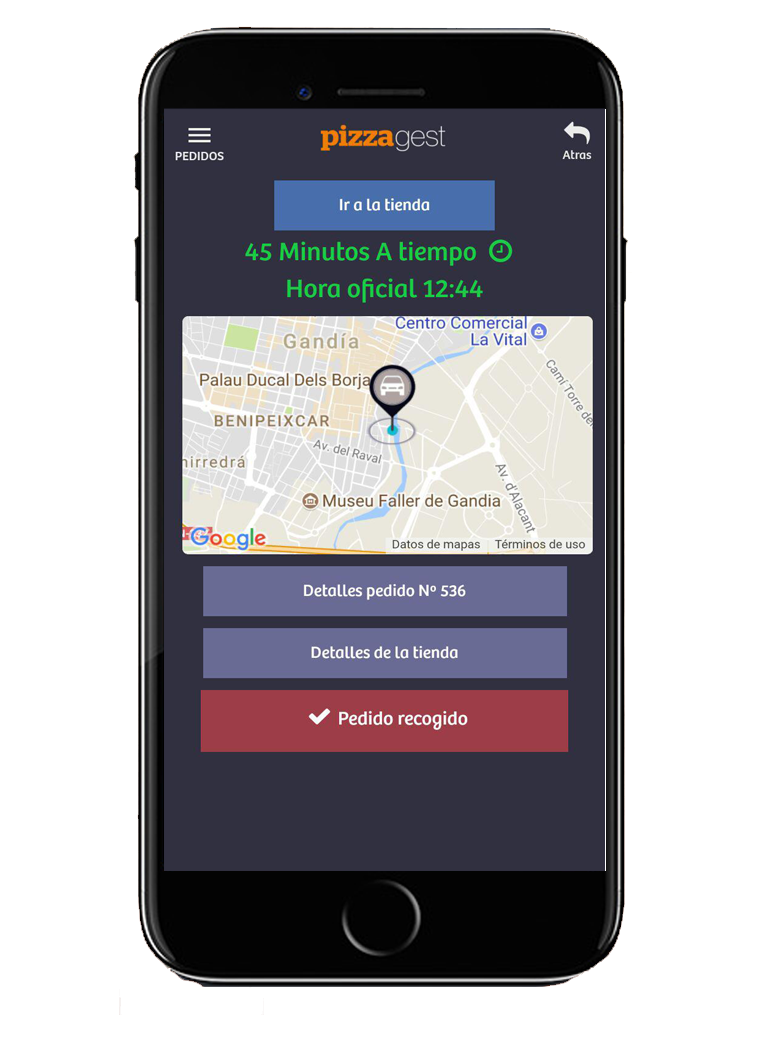
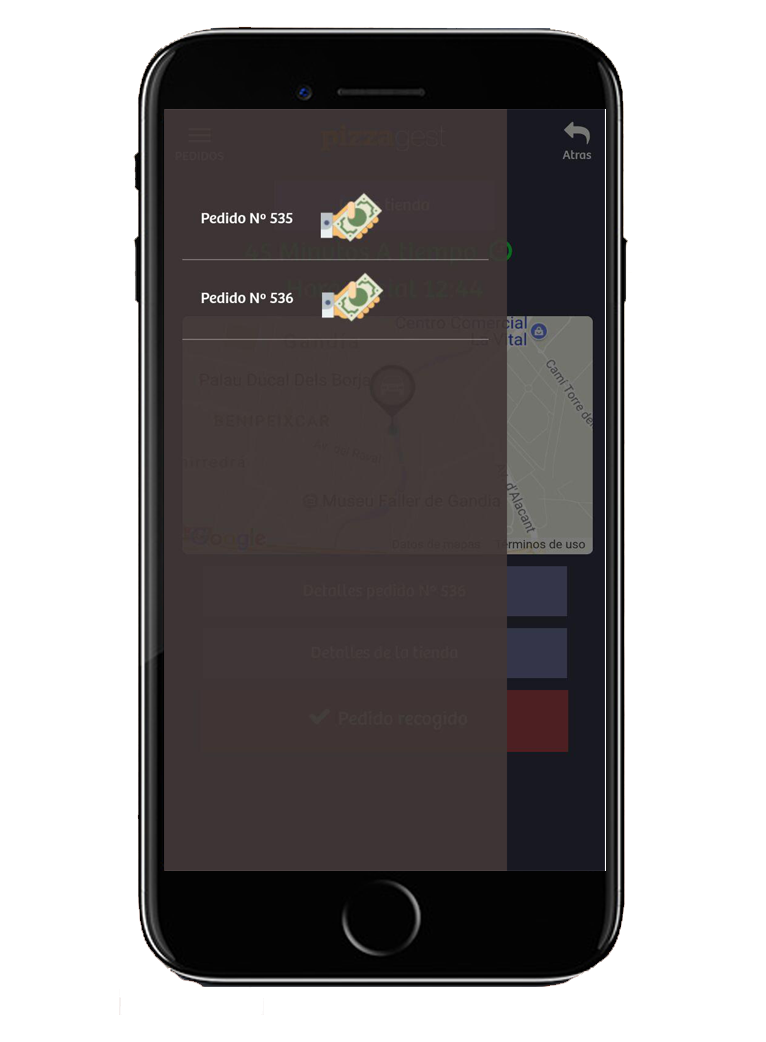
ORDERS, in the top left corner, opens a side menu with the orders assigned to you. For each one it shows the number and, on the right, the payment method.
Go to store
Go to store opens Google Maps with the route to the order's store.
The delivery time
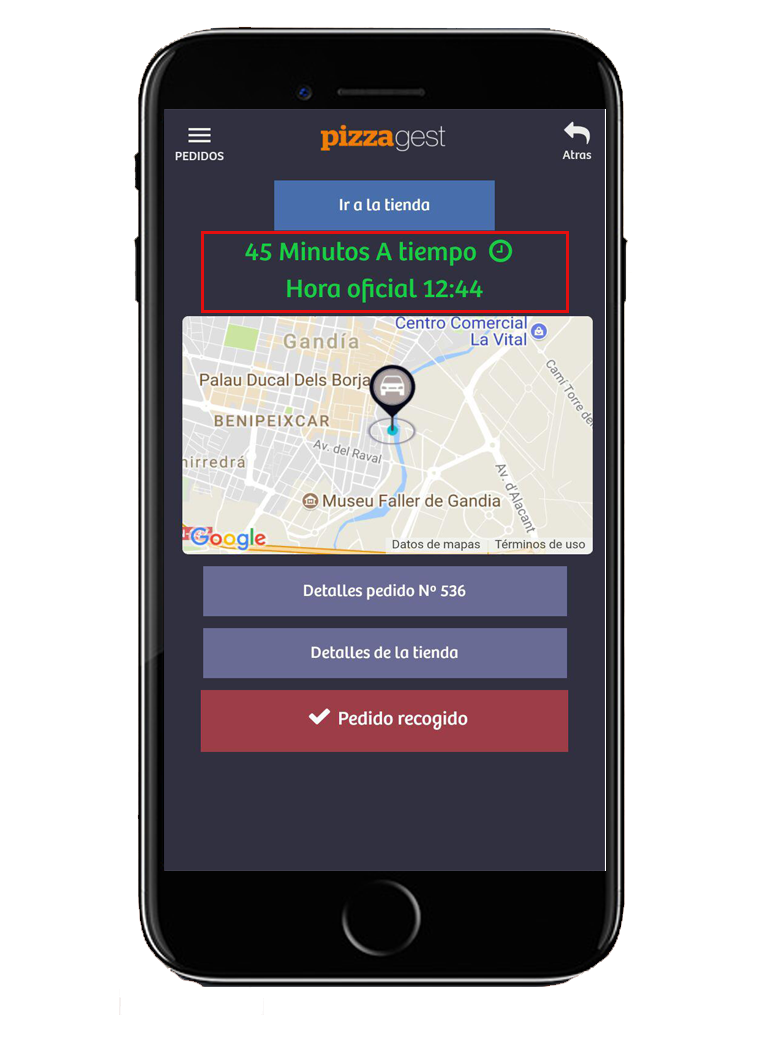
- The first one shows the time you have to deliver the order.
- Official time is the server's time.
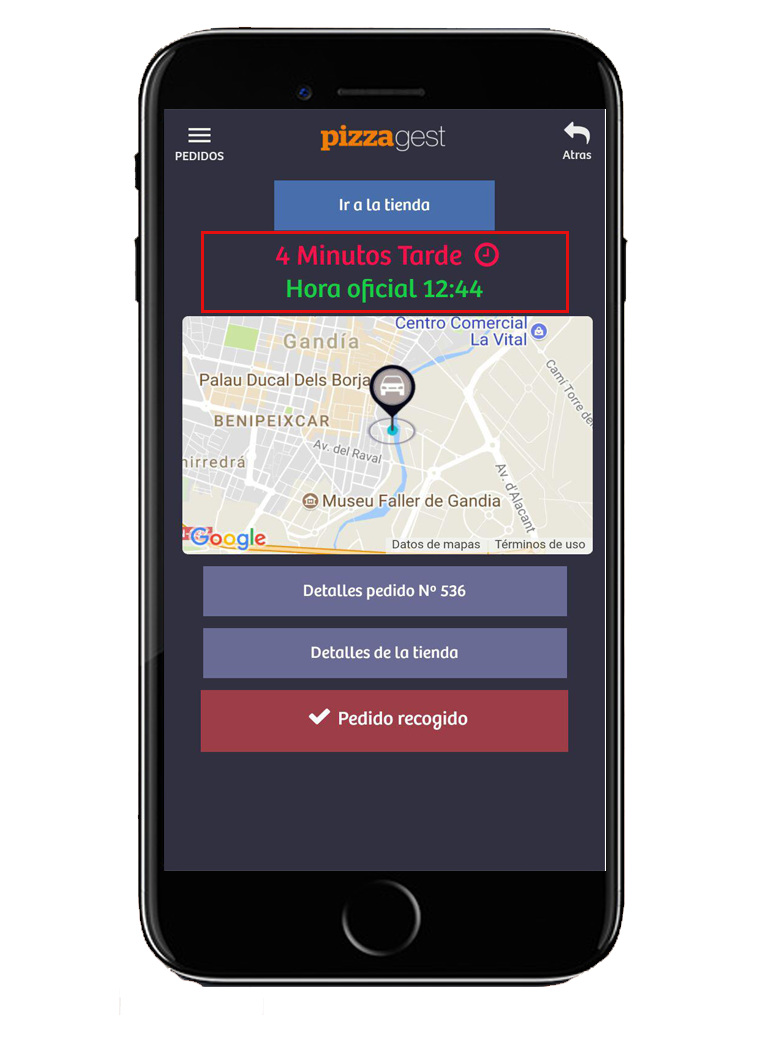
The colour of the two lines shows how you are doing. In green, the order will arrive at the expected time.
In red, the order is late.
The map
The map has three markers:
- Car: where you are.
- Store: where the store you pick the order up from is.
- User: where the customer you deliver it to is.
The buttons below the map
| Button | What it does |
|---|---|
| Order details No. | Shows what the order contains (see Order details) |
| Store details | Shows the store's details (see Store details) |
| Order picked up | Marks the order as picked up at the store (see Order picked up) |