
Adding a new product line
Use this guide when you want to sell a type of product you did not have until now: you have to create everything, from the ingredients to the recipe. If the new product belongs to a family group that already exists, it is quicker to follow Adding an item to an existing family group.
Example. Your pizzeria starts selling sandwiches. The first one will be the Pork loin and cheese sandwich, at 5.50 €, and the customer will be able to order it with bacon as an extra.
The steps, in this order:
- Register the ingredients in the stockroom.
- Create the major group (if it does not exist).
- Create the family group.
- Set the inventory items of the family group.
- Create the sales item.
- Define its recipe.
- Check the result.
1. Register the ingredients in the stockroom
Go to Items → Inventory Items. You only have to create the ingredients that do not exist yet: you probably already use bacon on the pizzas. You are missing the bread, the pork loin and the sliced cheese.
Click Add and fill in the details of the first one:
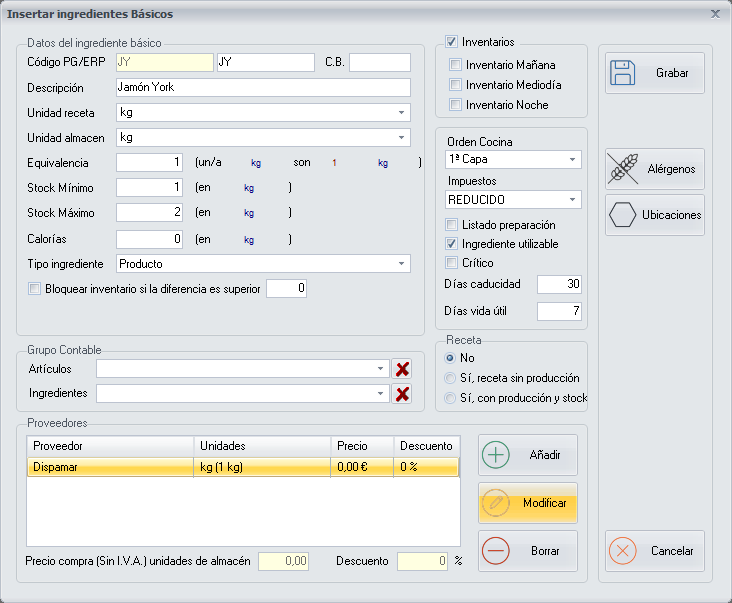
- Item ID: short and easy to remember, 2 or 3 letters. Enter
PB. - Description:
Sandwich bread. It is a good idea to use the same name that appears on the vendor's delivery note. - Recipe unit: the unit in which you will use it in the recipes. For the bread,
unit. - Stock unit: the unit in which you store it and count it in the inventories. For the bread,
box. - Equivalence: how many recipe units there are in one stock unit. If the box holds 40 breads, enter
40. - Minimum Stock and Maximum Stock: in stock units. Below the minimum, it is time to order from the vendor.
- Inventory item type:
Product. - Taxes: the VAT you buy it with.
Leave Inventory item available ticked (it comes that way) and click Save.
Repeat with the other two:
| Item ID | Description | Recipe unit | Stock unit | Equivalence |
|---|---|---|---|---|
PB |
Sandwich bread | unit | box | 40 (one box is 40 units) |
LO |
Pork loin | kg | tray | 2 (one tray is 2 kg) |
QL |
Sliced cheese | kg | pack | 1 (one pack is 1 kg) |
For everything that is weighed, use kg as the recipe unit and never grams: vendors invoice in €/kg, so the costs come out without conversions.
Allergens. Before saving each ingredient, click Allergens and tick the ones it has (bread, gluten; cheese, milk). This is what is later shown to the customer.
All the fields of the screen are explained in Add/Modify Inventory Items.
2. Create the major group
Go to Items → Major Groups. PizzaGest already comes with the most common major groups created (Drinks, Sandwiches, Salads, Pizzas, Desserts…).
- If Sandwiches is already in the list, select it, click Modify and check that its options are the ones below.
- If it is not, click Add.
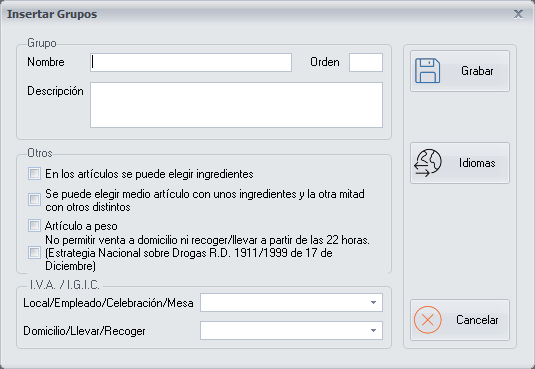
- Name:
Sandwiches. - Ingredients can be chosen in the items: tick it. This way the customer will be able to remove the cheese or add bacon. Without this option you will not be able to set the inventory items of the family group (step 4).
- Half of the item can be chosen with some ingredients and the other half with different ones: leave it unticked. It is for half and half pizzas.
- VAT / IGIC: the sales tax type, one for dine-in and another for delivery, take-away and pick-up.
Click Save.
3. Create the family group
Go to Items → Family Groups and click Add.
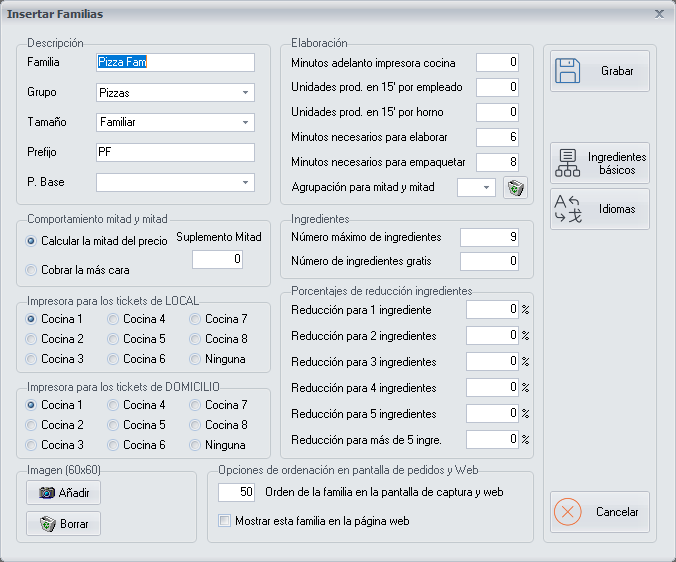
The essentials:
- Family Group:
Sandwiches. - Major Group: choose
Sandwiches. - Printer for DINE-IN tickets and for DELIVERY tickets: the kitchen area where the sandwiches are prepared, for example
Kitchen 1. - Kitchen printer advance minutes: the minutes the kitchen takes to prepare a product of this family group. PizzaGest uses them to send the kitchen tickets of an order in sequence.
- Maximum number of ingredients: how many ingredients an item of the family group can have at most. Enter
6. - Order of the family group on the order screen and web: the position of the family group on the orders screen. If they all have the same number, they are sorted alphabetically.
- Show this family group on the website: tick it if you sell online.
Click Save. The rest of the fields (half and half, reduction percentages, data for the website) are explained in Add/Modify Family Groups.
One family group or several? The items of a family group share printer, number of ingredients and price of the extras. If you are going to have small and large sandwiches with extras at different prices, the right thing is two family groups (*Sandwiches* and *Large sandwiches*), just like *Medium Pizzas* and *Family Pizzas*.
4. Set the inventory items of the family group
Here you say which ingredients can be used in the sandwiches and how much each one costs as an extra.
In Items → Family Groups, select Sandwiches and click Inventory Items.
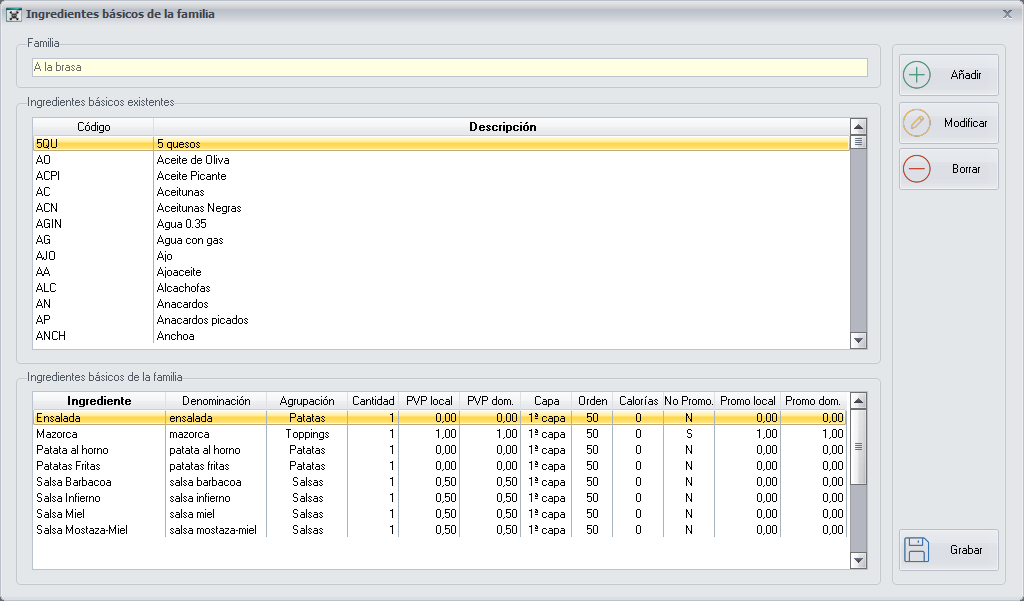
At the top are all the inventory items of the stockroom; at the bottom, those of the family group. Select Pork loin in the top list and click Add:

- Denomination: the name the customer and the employee will see. Leave
Pork loin. - Grouping: the block in which it will appear when taking the order (see Inventory Items Grouping).
- Quantity: what one portion contains, in recipe units:
0.100kg. - Price when the ingredient is added: what is charged if the customer orders it as an extra, for dine-in and for delivery.
0means free. - Price when WITHOUT mode is chosen: what is deducted if the customer removes it. It is written as a negative number; with
0nothing is deducted.
Click Save and repeat with the rest:
| Ingredient | Quantity | Price when added | Price in WITHOUT mode |
|---|---|---|---|
| Pork loin | 0.100 kg | 1.50 € | 0.00 € |
| Sliced cheese | 0.040 kg | 0.80 € | 0.00 € |
| Bacon | 0.040 kg | 1.00 € | 0.00 € |
You do not need to add the bread here: in the recipe it will go as a mandatory ingredient (step 6).
When you finish, click Save on the screen of the inventory items of the family group.
If the Inventory Items button appears disabled, the major group of the family group does not have the option Ingredients can be chosen in the items ticked (step 2).
5. Create the sales item
Go to Items → Sales Items and click Add.
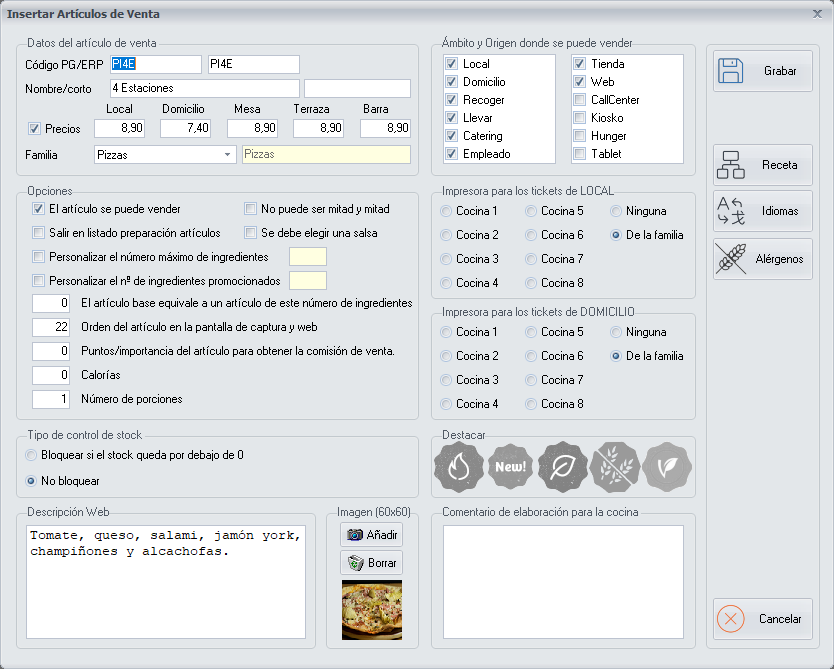
- Code: 3 or 4 letters, related to the name. Enter
BLQ. - Short name:
Pork loin and cheese sandwich. - Prices:
5.50for each order type in which you sell it (Dine-in, Delivery, Table, Terrace, Bar). They can be different. - Family Group:
Sandwiches. The major group is filled in automatically. - The item can be sold: ticked.
- Order type and Source where it can be sold: where it can be ordered (dine-in, delivery, pick-up…) and from where (branch, web, kiosk…).
- Printer for tickets: leave
From the family group. - Web description and Image: the text and the photo shown on the website and on the orders screen.
Click Allergens to review those of the item and then Save.
Easy codes. If all the items of a family group start the same way (BLQ pork loin and cheese, BTO Spanish omelette, BVE veggie), nobody has to learn them by heart.
6. Define the recipe
In Items → Sales Items, select the sandwich and click Recipe.
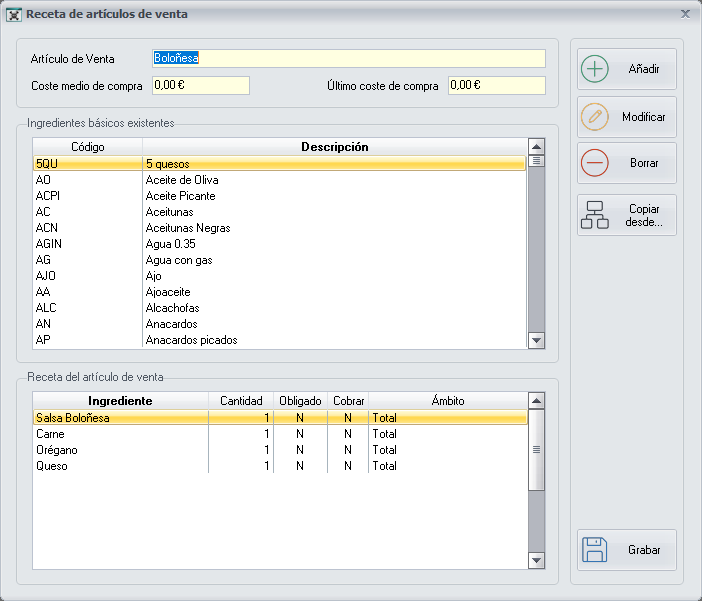
Select Sandwich bread in the top list and click Add:
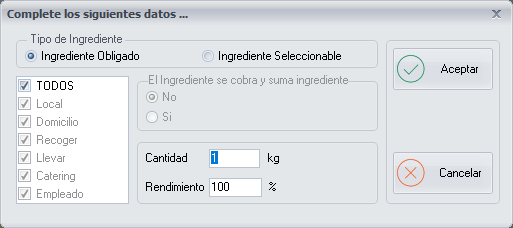
You have to choose the ingredient type:
| Type | When it is used | In our example |
|---|---|---|
| Mandatory Ingredient | The customer cannot remove it or change it. It can be limited to some order types: the pizza box, only for delivery and pick-up. | Sandwich bread |
| Selectable Ingredient | The customer can order the product without it. It has to be among the inventory items of the family group. | Pork loin, sliced cheese |
For the bread: Mandatory Ingredient, order type ALL, Quantity 1 and Yield 100. Click Ok.
For the pork loin and the cheese: Selectable Ingredient, with quantity 0.100 and 0.040.
With all the ingredients in the bottom list, click Save.
Yield is the percentage of the ingredient that is actually used. It is almost always 100; if out of 1 kg of chicken you only use 700 g, it would be 70.
7. Check the result
- Open Orders and start a test order. The Sandwiches family group must appear and, inside it, the Pork loin and cheese sandwich at 5.50 €.
- Try adding bacon (the price goes up 1.00 €) and ordering it without cheese.
- If you sell online, go to Options → Export to Web, tick Export Menu with Major Groups and Family Groups, Items, Recipes of the items and Ingredients, and export. It is explained in Export to Web.
And the second sandwich
With the family group already created, the next sandwiches only need steps 5 and 6. And you do not have to start the recipe from scratch: the Copy from… button brings in the recipe of another item of the same family group. You can see it in Adding an item to an existing family group.