
Add Street in Google Maps
From this screen you add streets that appear in Google Maps to your street map.
How to get here: Google Maps button on the Customer Management screen.
This screen only works if you have a Google API key set on the Add/Modify Franchisees screen.
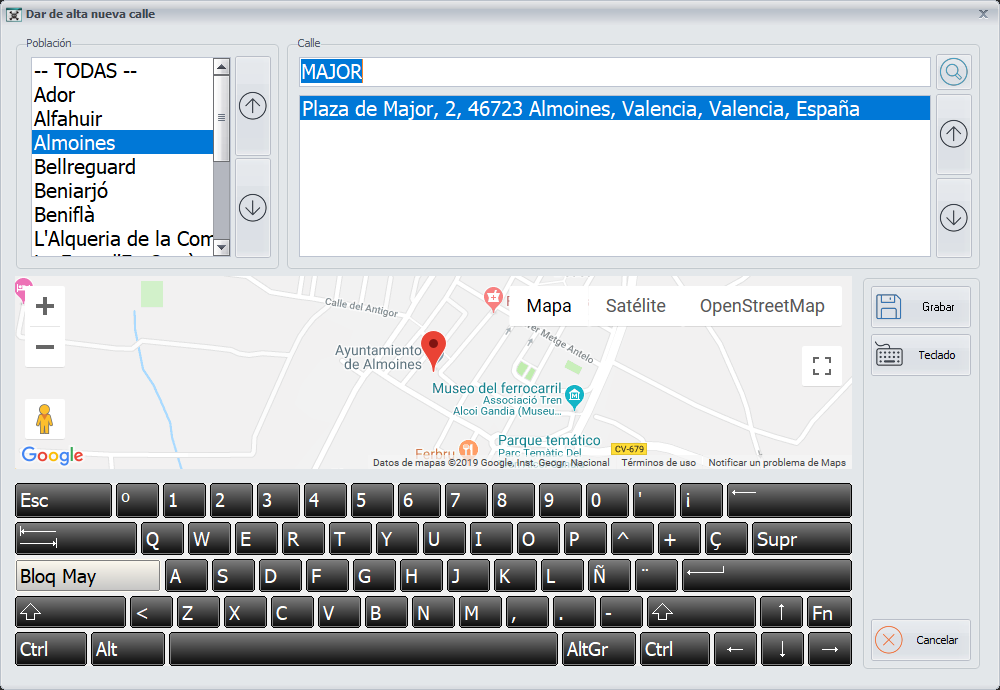
Adding a street
- On the left you see all the cities of the zones of the area your branch belongs to. Choose the city.
- Type the name of the street you are looking for. The matches Google finds for that name appear below.
- If you find the street you want, select it and click Save.
- Next, choose the zone on the Choose Zone in Google Maps screen. The street is added automatically.
Buttons
- Keyboard: it is at the bottom of the screen. It shows or hides the keyboard.
- Save: click it after selecting the street you want.