
Add/Modify Order Payment Methods
On this screen you create an order payment method or change its data: type, access level, web payment gateway, export and where it can be used.
How to get here: Add or Modify button on the Order Payment Methods screen.
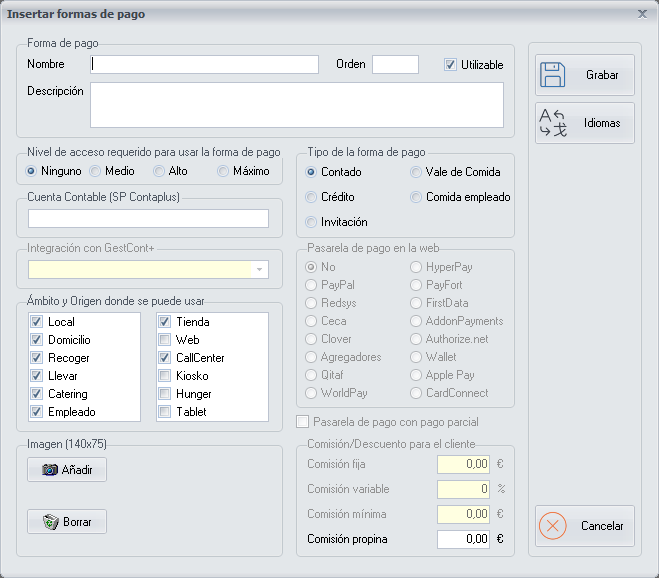
Payment method data
- Name: the name of the payment method.
- Description: additional information about the payment method, for any later clarification.
- Order: the order number in which you want the payment method to appear in the drop-down list of the Charge Order and Delivery Order Total screens. If all the payment methods have the same order number, they are sorted by order of creation.
- Usable: ticked by default. Untick it when you stop working with this payment method.
The Cash payment method is already created by default in the system.
Access level
You can set the Access level required to use the payment method.
Payment method type
Choose the corresponding Payment method type:
| Type | When to choose it |
|---|---|
| Cash | For payment in cash. |
| Credit | For card payments (Visa, MasterCard). |
| Invitation | Only for the Invitation payment method. |
| Meal voucher | For payments with meal vouchers, such as Cheques Gourmet, Ticket Restaurant, etc. |
| Employee Meal | So that an employee can choose this payment method on the Charge Order screen when they place an order as Employee from the Orders screen. |
Web payment gateway
If the payment method type is Credit, you can choose the web payment gateway among the different web payment methods that exist. This option is exclusive to customers who have a website.
- Payment gateway with partial payment: by default, the payment made on the web with the chosen gateway is for the total of the ticket. If you tick this option, the ticket can be paid with several payment methods.
- Fixed commission, Variable commission and Minimum commission: some payment gateways charge a commission for using them. With these fields you can pass that commission on to the customer.
Payment method export
There are several ways to export the order payment method:
- SP ContaPlus Ledger Account: if you use the SP ContaPlus application, enter the code that application gives you, to export the order payment method from PizzaGest to SP ContaPlus.
- Integration with GestCont+: if you use the GestCont+ application, choose the corresponding payment method from the drop-down list, to export the order payment method from PizzaGest to GestCont+.
Order type and Source where it can be used
Order type indicates in which type of order the payment method can be used:
| Order type | The payment method can be used in… |
|---|---|
| Dine-in | The premises or branch where the order is placed. |
| Delivery | Delivery orders. |
| Pick-up | Orders to be picked up at the premises or branch. |
| Take-away | Take-away orders. |
| Catering | Caterings or special celebrations. |
| Employee | Orders placed by an employee. |
Source indicates where the order was placed from:
| Source | The payment method can be used in… |
|---|---|
| Branch | Orders placed in the branch. |
| Web | Orders placed from the web. |
| Call Center | Orders placed from a Call Center. |
| Kiosk | Orders placed from a kiosk: a machine on which the customer sets up the order themselves inside the branch. |
| Hunger | Orders from the Hunger application, similar to Just Eat. |
| Tablet | Orders a waiter places with a tablet from a table on the premises. |
Image
You must also add an image to the order payment method, with the Add button. This image is used on the Break Down Cash Movements screen.
Buttons
- Add: adds the image of the payment method.
- Languages: saves the name of the order payment method in other languages, to use it later in PizzaGest or from the web.
- Save: saves the order payment method when you have finished setting it up.
- Cancel: closes the screen without saving the changes.