
Add/Modify Creditor’s Invoices
On this screen you enter a creditor's invoice or change its details: the header, the concepts and their amounts.
How to get here: Add or Modify button on the Creditor’s Invoices screen.
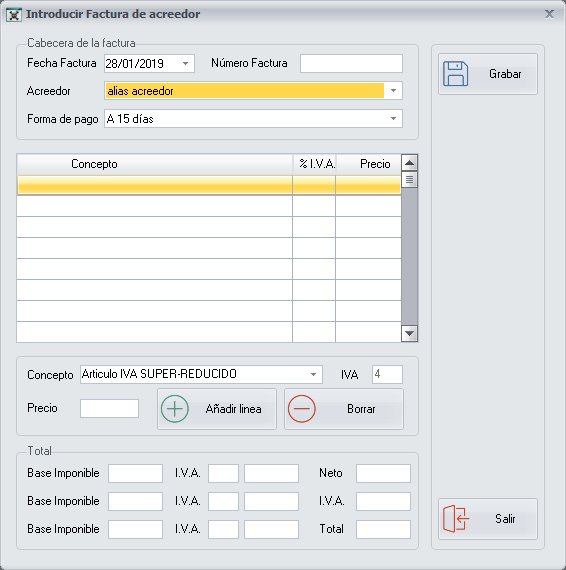
Invoice header
- Invoice date: the date of the creditor's invoice. Enter it with the help of the calendar.
- Invoice number: the creditor's invoice number.
- Creditor: the creditor's alias, which you choose from the drop-down list. The list of creditors is configured on the Creditors screen.
- Payment method: the creditor's payment method, which you choose from the drop-down list. The list of creditor payment methods is configured on the Vendors and Creditors Payment Method screen.
Invoice concepts
For each concept you want to add to the invoice:
- In the Concept drop-down list, select the VAT type charged on the service this creditor provides.
- In the Price field, enter the net amount of the invoice.
- Click Add line.
To delete a line added to the list of Concepts, select it and click Delete.
Total
In the Total section, at the bottom, you see how the prices of each VAT type are added to the Taxable Base corresponding to each VAT.
In the last column you see the Net Total, the VAT Total and the Invoice Total.
Buttons
- Add line: adds the concept with its price to the invoice.
- Delete: deletes the line selected in the list of Concepts.
- Save: click it once you have finished configuring the creditor's invoice.