
Add/Modify Creditors
On this screen you register a creditor or change its details.
How to get here: Add or Modify button on the Creditors screen.
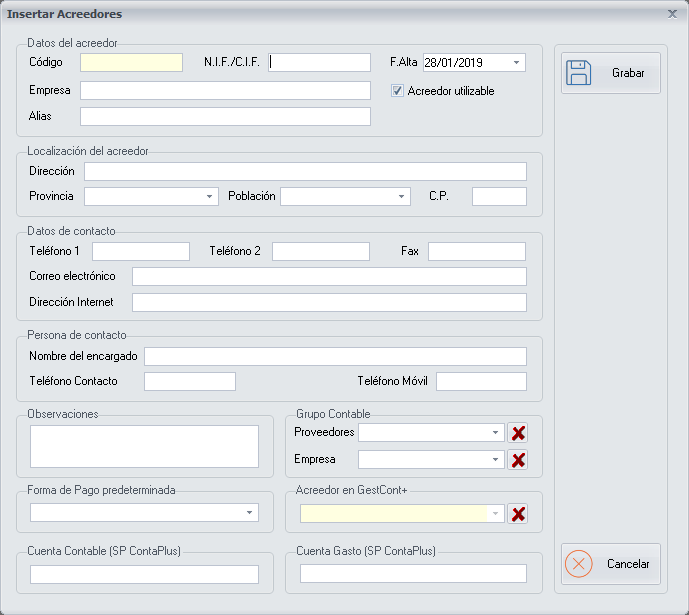
Creditor details
- Code: it is created automatically when you create a new creditor.
- Export Code: if you use a creditor export application, the export code that application gives you.
- NIF/CIF: the creditor's NIF or CIF, as applicable.
- Company: the legal name of the creditor's company.
- Alias: the name of the creditor that the branches see, in case you do not want them to know the creditor's legal name.
You can also choose these options:
- Registration date: the date on which you register the creditor in the system. Choose it with the help of the calendar.
- Creditor available: it comes ticked. Untick it when you stop working with this creditor.
Location, contact and comments
- Creditor location: the fields of the creditor's address.
- Contact details: the creditor's contact fields.
- Contact person: the fields of the creditor's contact person.
- Comments: any additional comment that may be useful for a later query.
Default payment method
In Default payment method, choose the payment method from the drop-down list. The payment methods are configured on the Vendors and Creditors Payment Method screen.
Export to SP ContaPlus and GestCont+
- Accounting Account (SP ContaPlus): if you use the SP ContaPlus application, the creditor code this application gives you, to export the creditor's data from PizzaGest to SP ContaPlus.
- Creditor in GestCont+: if you use the GestCont+ application, choose the corresponding creditor from the drop-down list, to export the creditor's data from PizzaGest to GestCont+.
- Expense Account (SP ContaPlus): if you use the SP ContaPlus application, the creditor code this application gives you, to export the creditor's data from PizzaGest to SP ContaPlus.
Buttons
- Save: saves the creditor.
- Cancel: closes the screen without making any changes.