
Add/Modify Franchisees
On this screen you register a franchisee or change its data: company, contact, invoice series and API Keys.
How to get here: Add or Modify button on the Franchisees screen.
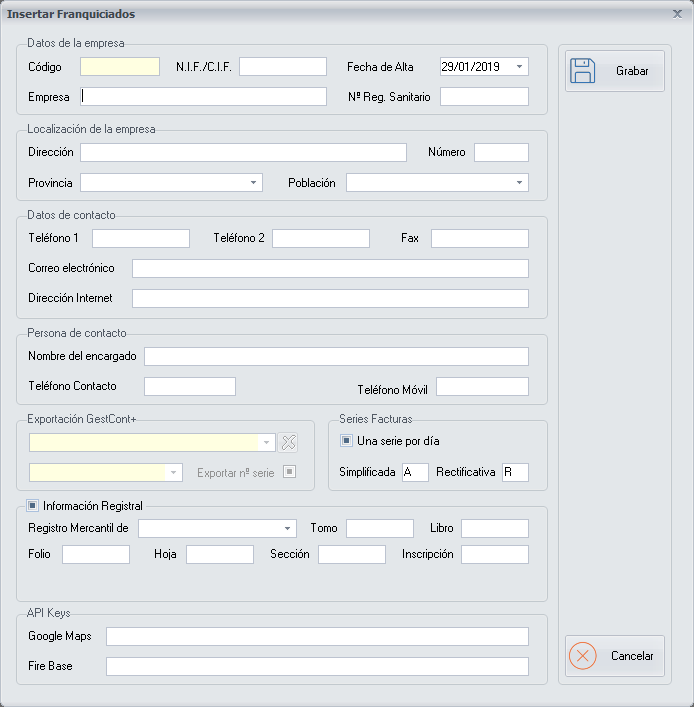
Company data
- Code: created automatically when you create a new franchisee.
- NIF/CIF: the NIF or CIF of the franchisee, as applicable.
- Registration date: the date on which the franchisee is registered. Choose it with the help of the calendar.
- Company: the legal name of the franchisee's company.
- Health registration number: enter it if the franchisee provides it, to have as much information about them as possible.
Company location
Fill in the fields of the franchisee's address.
Contact data
Fill in the franchisee's contact fields.
Contact person
Fill in the fields of the franchisee's contact person.
Export to GestCont+
If you use the GestCont+ application, you can choose the data of the corresponding franchisee, to export the franchisee's data from PizzaGest to GestCont+.
Invoice Series
The invoices you issue carry a series, that is, a numerical continuity: each invoice follows the previous one. This is what is known as an invoice series.
- One series per day: if you tick it, the invoice series starts every day. If not, it starts every year.
- Simplified and Corrective: in each field you can type one character, with which the invoice series starts. By default, simplified invoices start with
Aand corrective invoices withR.
Registry Information
Filling in this data is optional. It is used so that, when you issue an invoice to a customer, the company registration information of your company appears.
API Keys
- Google Maps: the Google API Key you need for Google maps to work in PizzaGest. Request it from your Google account, where a payment method must be set up.
- Fire Base: the Fire Base API Key you need for the Google database used for notifications to the customer from the Apps to work.
If you do not fill in the Google Maps field with a Google API Key, the maps on the Add Street on Google Maps and Branch Location on Google Maps screens do not work, nor does the Maps tab on the Customer Management screen.
Buttons
- Save: saves the franchisee when you have finished setting up its data.
- Cancel: closes the screen without saving the changes.