
Stockroom Outgoing or Outgoing due to Losses
On this screen you record a stockroom outgoing or an outgoing due to losses of an inventory item.
How to get here: Stockroom outgoing button or Outgoing due to losses button on the Outgoings and Losses screen, with the inventory item selected.
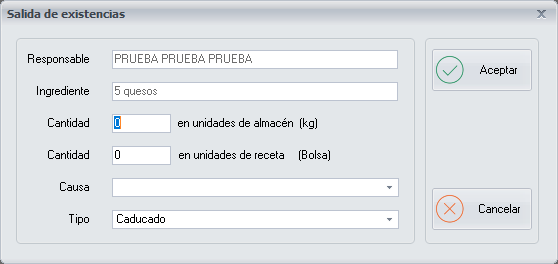
Outgoing details
- Person in charge: the name of the employee who makes the stockroom outgoing or outgoing due to losses. It is the employee who, at the time of making the outgoing, is identified in the system in the Restricted options.
- Inventory item: the name of the inventory item you previously selected on the Outgoings and Losses screen.
- Quantity in stockroom units: the quantity, in stockroom units, of the outgoing of the selected inventory item.
- Quantity in recipe units: the quantity, in recipe units, of the outgoing of the selected inventory item.
- Cause: the cause of the stockroom outgoing or outgoing due to losses, for a possible later clarification. The causes you type are added to the drop-down list: if the same cause comes up again, choose it from the drop-down and you do not have to type it again.
- Type: the type of stockroom outgoing or outgoing due to losses. Choose it from the drop-down list. The options in the drop-down are configured on the Waste Type screen.
The quantities you enter in stockroom units and in recipe units are added together when the stockroom outgoing or outgoing due to losses is accounted for.
Undoing and checking outgoings
- If you make a mistake when making a stockroom outgoing or outgoing due to losses, you can undo the operation from the Undo Stockroom Transfers screen.
- All the details of any stockroom outgoing or outgoing due to losses you enter in the system can be checked from the Report of Outgoings, Losses and Wastes screen.
Buttons
- Ok: click it once you have finished configuring the stockroom outgoing or the outgoing due to losses.
- Cancel: closes the screen without making any changes.