
Change Price of Sales Items
From this screen you modify the prices of a large number of sales items in a single step.
How to get here: menu Items → Sales Items, Prices button (Sales Items).
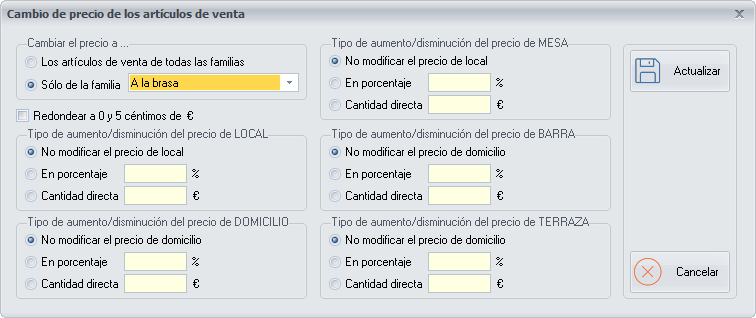
Which items change
First choose whether you want to modify the price of the items of all the family groups or only of a specific family group.
- Round to 0 and 5 euro cents: tick it so that no price is left unrounded, with odd cents.
How the price changes in each order type
Within each Order type (Dine-in, Delivery, Table, Bar, Terrace) in which you want to change the price, choose between:
| Option | What you enter |
|---|---|
| Do not modify the price | Nothing: the price of that order type does not change. |
| As a percentage | The percentage by which you want to change the price of the sales items: positive to increase it, negative to decrease it. |
| Direct amount | The direct amount, in euros, by which you want to change the price of the sales items: positive to increase it, negative to decrease it. |
Buttons
- Update: applies the configured price change to the selected sales items.
- Cancel: closes the screen without saving the changes.