
Non-Conforming Inventory Item in Vendor Invoice
On this screen you classify an inventory item of a delivery note as Non-Conforming: you enter the cause, a comment and the quantity that arrived in bad condition.
How to get here: Non-Conforming button on the Add/Modify Vendor Invoices screen, with the inventory item selected in the delivery note.
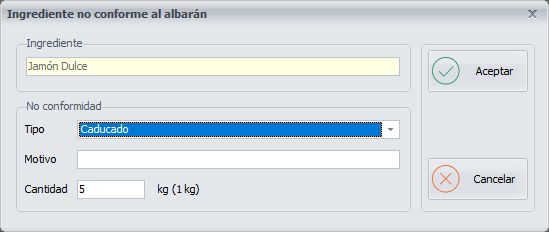
At the top you see the inventory item you selected in the delivery note.
Non-conformity details
- Type: the cause for which you classify the inventory item as Non-Conforming. Choose it from the drop-down list. The options in the drop-down are configured on the Waste Type screen.
- Reason: a comment that may be useful for a later clarification. You can check it on the Report of Outgoings, Losses and Wastes screen.
- Quantity: the quantity, in order units, that arrived in bad condition. Part of the goods of the same inventory item may have arrived in good condition and part in bad condition.
Buttons
- Ok: click it once you have finished configuring the inventory item as Non-Conforming.
- Cancel: closes the screen without making any changes.