
Add/Modify Inventory Items in Vendor Invoices
On this screen you choose one of the vendor's inventory items and enter the details with which it goes into the delivery note: quantity, price, discount, batch and dates.
How to get here: Add or Modify button on the Add/Modify Vendor Invoices screen.
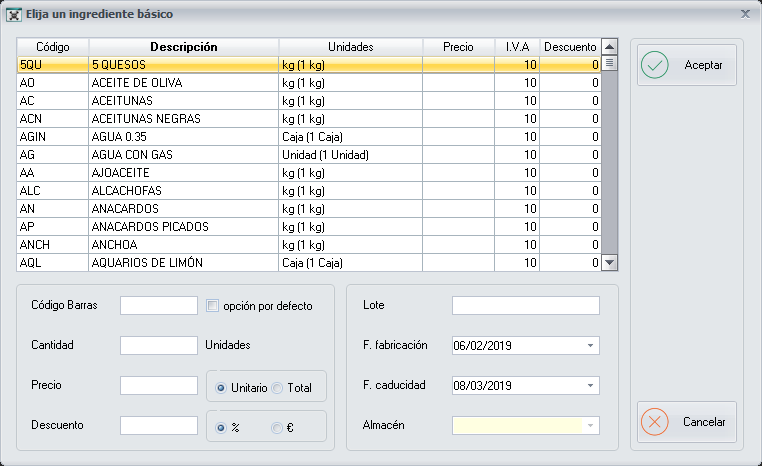
List of inventory items
The list shows all the inventory items supplied by the vendor you selected on the Add/Modify Vendor Invoices screen. The inventory items each vendor supplies are configured on the Add/Modify Inventory Items screen.
| Column | What it shows |
|---|---|
| Code | The code of the inventory item. |
| Description | The description of the inventory item. |
| Units | The order units in which the vendor supplies the inventory item. |
| Price | The price at which this vendor sells you the inventory item, per order unit. |
| VAT | The VAT type. |
| Discount | The discount the vendor gives you. |
All these details are also configured in Add/Modify Inventory Items.
Details of the inventory item in the delivery note
First select in the list the inventory item you want to add or modify in the delivery note (unless you have a barcode reader). Then fill in these fields:
- Barcode: if you have a barcode reader connected to the computer and leave the cursor in this field, when you pass the reader over the barcode of the inventory item it is entered automatically and the corresponding inventory item is selected in the list. If you tick default option, to the right of the field, the cursor is placed in this field every time you open the screen.
- Quantity: the quantity, in the order units the vendor supplies. The vendor's order units are configured on the Add/Modify Vendors of the Inventory Item screen.
- Price: the price per unit or the total, whichever appears on the delivery note. To the right of the field, select the option that applies: unit price or total price.
- Discount: if the vendor gives you a discount, enter it as a percentage or in euros and tick the option that applies:
%or€. - Batch: the batch number that appears on the delivery note.
- Manufacturing date: the manufacturing date that appears on the delivery note.
- Expiry date: the expiry date that appears on the delivery note.
- Stockroom: a field only for customers who have a Head Office and can choose between several stockrooms.
For the reader to recognise the inventory item, you must first have entered its barcode on the Add/Modify Inventory Items screen.
Buttons
- Ok: adds a new detail line to the delivery note with the configured inventory item.
- Cancel: closes the screen without saving the changes.