
Adding an extra ingredient
When you want to offer a new ingredient, so that the customer can order it as an extra or so that you can put it in the recipe of a product, you have to register it in the stockroom and add it to the family groups in which it is going to be used.
Example. You want to offer rocket as an extra on the pizzas (1.00 € on the medium ones and 1.50 € on the family ones) and have the Veggie Pizza include it as standard.
The steps:
- Register the ingredient in the stockroom.
- Add it to each family group, with its price.
- Put it in the recipe of the items that contain it.
- Check the result.
1. Register the ingredient in the stockroom
Go to Items → Inventory Items. If rocket is already in the list, go on to step 2. If not, click Add.
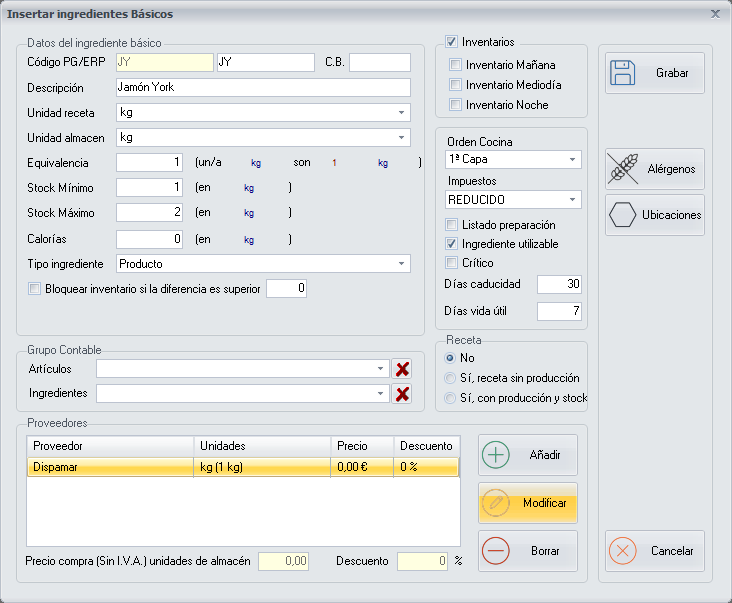
- Item ID:
RU. - Description:
Rocket. - Recipe unit:
kg. - Stock unit:
bag. - Equivalence: if the bag is half a kilo,
0.5. - Inventory item type:
Product. - Kitchen order: the layer in which the ingredient is placed when preparing the product. It sorts the ingredients on the kitchen ticket.
- Taxes: the VAT you buy it with.
Click Allergens if it has any and then Save.
All the fields are in Add/Modify Inventory Items.
2. Add it to each family group
An ingredient cannot be ordered or used in a recipe until it is among the inventory items of the family group. And you have to do it in each family group in which it is going to be offered, because each one has its own quantity and price.
Go to Items → Family Groups, select Medium Pizzas and click Inventory Items.
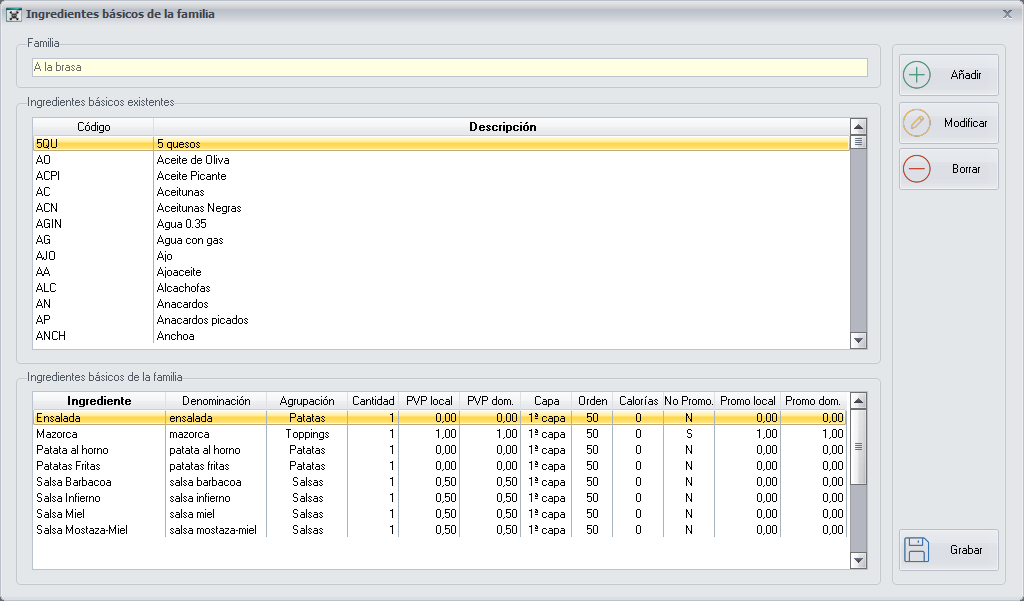
Select Rocket in the top list and click Add:

- Denomination: the name the customer and the employee will see:
Rocket. - Grouping: the block in which it appears when taking the order, for example
Toppings. - Quantity: what a medium pizza contains:
0.020kg. - Screen order: the position in which the ingredient appears when taking the order.
- Price when the ingredient is added: what the customer pays for the extra.
1.00for dine-in and for delivery. - Price when WITHOUT mode is chosen: what is deducted if the customer removes it from a pizza that contains it. It is written as a negative number (
-1.00); if you do not want to deduct anything,0. - The ingredient can be promoted: tick it if it can be one of the promoted ingredients of the family group.
Click Save in this window and Save again on the screen of the inventory items of the family group.
Repeat in Family Pizzas with its values:
| Family Group | Quantity | Price when added | Price in WITHOUT mode |
|---|---|---|---|
| Medium Pizzas | 0.020 kg | 1.00 € | -1.00 € |
| Family Pizzas | 0.035 kg | 1.50 € | -1.50 € |
From this moment on, rocket can be ordered as an extra on any pizza of those two family groups.
All the fields are in Add/Modify Inventory Items in a Family Group.
3. Put it in the recipe of an item
For the Veggie Pizza to include rocket as standard, go to Items → Sales Items, select Medium Veggie Pizza and click Recipe.
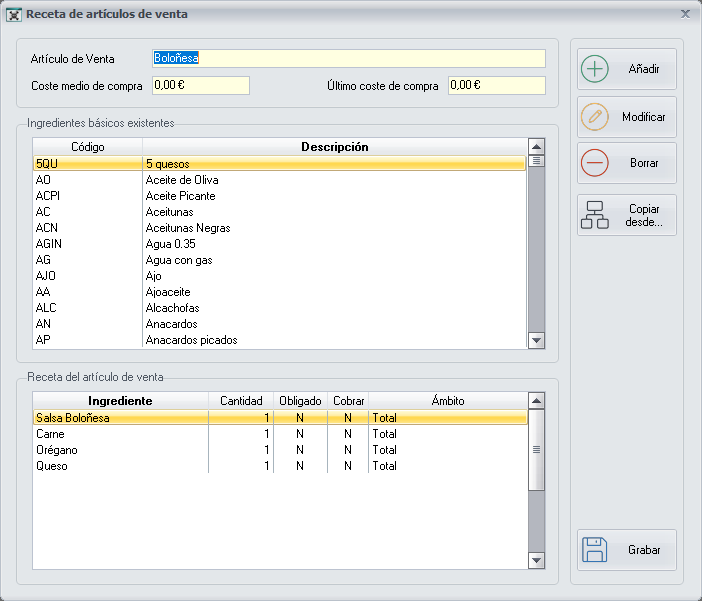
Select Rocket in the top list and click Add:
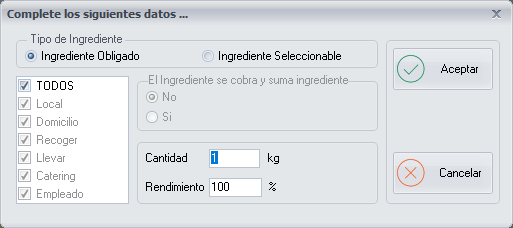
- Ingredient type: Selectable Ingredient, so that the customer can order the pizza without rocket.
- Quantity:
0.020kg.
Click Ok and then Save. Repeat with the Family Veggie Pizza and its quantity.
If the quantity you put of an ingredient changes later on, you do not need to open the recipes one by one: in the window of step 2, the In all items button changes the quantity of that ingredient in the recipes of the whole family group.
4. Check the result
- Open Orders, choose any medium pizza and check that Rocket can be added to it and that it adds 1.00 €.
- Choose the Medium Veggie Pizza and check that it contains it and that it can be ordered without it.
- If you sell online, run an Export to Web ticking Major Groups and Family Groups, Recipes of the items and Ingredients.
If something goes wrong
| What happens | Why | Solution |
|---|---|---|
| When you save the recipe, PizzaGest warns that the ingredient is not included in the family group. | The ingredient is selectable and is missing from the inventory items of the family group. | Add it to the family group (step 2) and save the recipe again. |
| The Inventory Items button of the family group is disabled. | The major group does not allow ingredients to be chosen. | In Items → Major Groups, modify the major group and tick Ingredients can be chosen in the items. |
| It does not let you delete an inventory item from the family group. | It is in the recipe of some item of that family group. | Remove it from those recipes first. |
| It does not let you delete an inventory item. | It has been used in some recipe. | If it is no longer going to be used, untick Inventory item available on its screen. |
| You have changed one ingredient for another (another vendor, another format). | Use Replace Inventory Items instead of redoing the recipes (Replace Inventory Item). |