
Add/Modify Jobs
On this screen you create a job or change its details: the description, the grouping, the teams it belongs to and the colour that represents it.
How to get here: Add or Modify button on the Jobs screen.
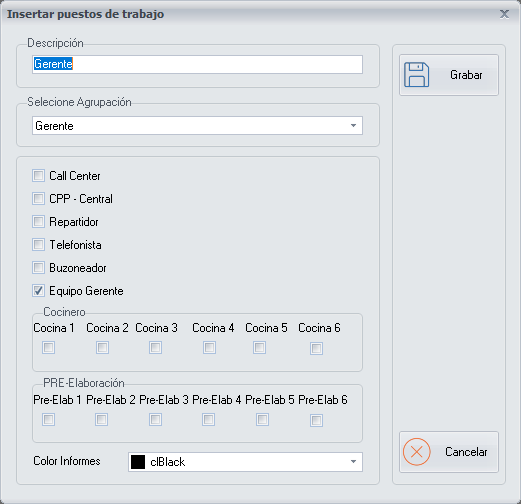
Job details
- Description: a description of the job.
- Select grouping: one of the groupings you have created on the Jobs Grouping screen.
Teams
Tick the team or teams the job belongs to:
| Team | What the person in the job does |
|---|---|
| Call Center | Works in a Call Center, receiving and making calls. |
| CPP-Central | Works in a production kitchen or factory where products such as doughs and sauces are prepared and then sold to other branches or franchises. |
| Driver | Delivers the delivery orders. Appears in the list of drivers on the Delivery Orders screen. |
| Operator | Takes the orders customers place for Delivery and Pick-up. Appears in the list of workers on the Orders screen. |
| Flyer Distributor | Delivers coupons or flyers to the letterboxes of potential customers. |
| Management Team | Belongs to the management team. |
Kitchen and Pre-preparation
If the job is done in the Kitchen, tick the Kitchen numbers it can occupy. If it applies to the job, also tick the Pre-preparation station numbers it can occupy.
Colour
You can choose the colour or Legend with which the job is represented in Schedule management.
Buttons
- Cancel: closes the screen without making any changes.