
Add/Modify Vendor Invoices
On this screen you enter a vendor's delivery note or change its details: the header, the detail lines, the discounts and the non-conforming inventory items.
How to get here: Add or Modify button on the Vendor Invoices screen.
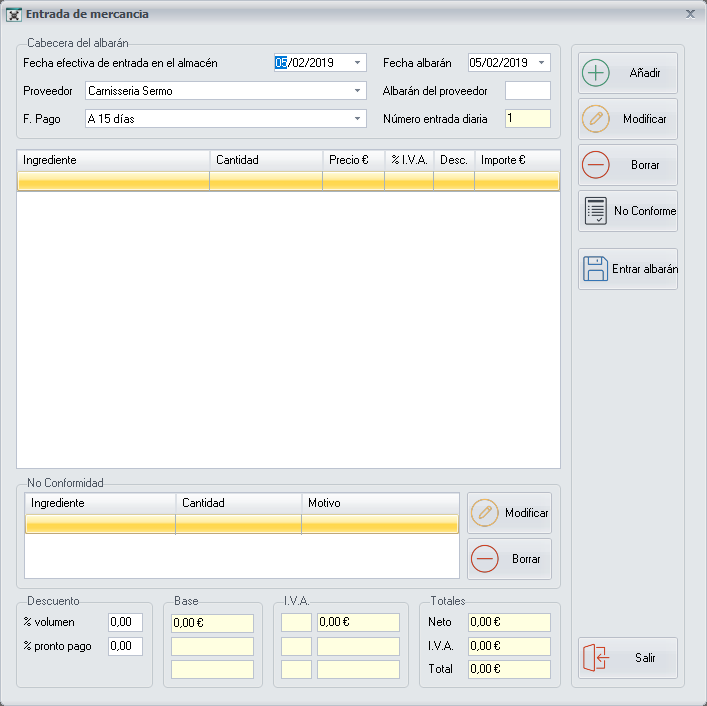
Delivery note header
- Effective date of entry into the stockroom: the date on which you store the goods and want them to start counting for stock control purposes.
- Delivery note date: the date shown on the vendor's delivery note.
- Vendor: one of the available vendors, which you choose from the drop-down list. The vendors are configured on the Vendors screen.
- Vendor's delivery note: the number shown on the vendor's delivery note.
- Payment method: one of the available payment methods, which you choose from the drop-down list. The vendor payment methods are configured on the Vendors and Creditors Payment Method screen.
- Daily entry number: it is filled in automatically and increases as you add more delivery notes on the same day.
In Vendor you can only choose vendors that have some inventory item assigned. First you have to assign the vendors of each inventory item on the Add/Modify Inventory Items screen.
Detail lines
Fill in the delivery note with the buttons on the right:
- Add: adds a detail line to the delivery note, from the Add/Modify Inventory Items in Vendor Invoices screen.
- Modify: modifies the selected detail line, from the same screen.
- Delete: removes the selected line from the delivery note.
Taxable bases, VAT and totals
As you add, modify or delete detail lines, the information at the bottom is updated:
- In several columns, the sum of the taxable bases. To their right, the VAT type applied to each taxable base and the sum of the VAT amount that is going to be added to the delivery note, grouped by VAT type.
- In the Totals section, the total sum of all the taxable bases, the sum of all the VAT amounts and the total amount of the delivery note.
Discounts
You can add two types of discount, which are applied to the total of the delivery note: a volume discount and an early payment discount. In both cases enter, as a percentage, the discount the vendor gives you on the delivery note.
Non-Conforming
If you have already paid the delivery note and some goods arrive in bad condition, you can record in the delivery note that you do not accept them. In addition, those goods are deducted for stock control purposes.
- Select the detail line of the delivery note where the inventory item appears.
- Click Non-Conforming. The Non-Conforming Inventory Item in Vendor Invoice screen opens.
- Classify the inventory item as Non-Conforming. The inventory item appears in the section below, Non-Conformity.
The inventory items in the Non-Conformity section can be modified or deleted with its Modify and Delete buttons.
All the details of any inventory item you have classified as Non-Conforming can be checked from the Report of Outgoings, Losses and Wastes screen.
Buttons
- Add, Modify and Delete: add, modify and remove detail lines of the delivery note.
- Non-Conforming: classifies the inventory item of the selected line as Non-Conforming.
- Enter delivery note or Save changes, as applicable: inserts or modifies the delivery note in the system. Click it once you have finished configuring the delivery note.