
Add/Modify Inventory Items Grouping
On this screen you create an inventory items grouping or change its data: order, name, number of ingredients and image.
How to get here: menu Data → Items → Inventory Items Grouping, Add or Modify button (Inventory Items Grouping).
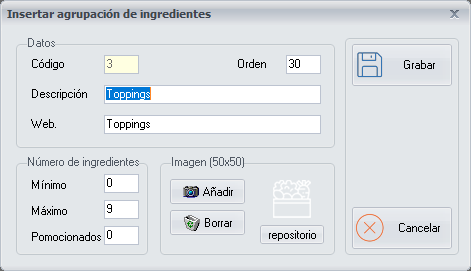
Data
- Code: generated automatically, according to the number of existing groupings.
- Order: sorts the groupings chronologically, so that they appear in the order you want when you place an order.
- Description: the name of the grouping. It should help you identify it so you can choose it on the Add/Modify Inventory Items in a Family Group screen.
- Web: the name of the inventory items grouping that appears when you place an order and on the web. A short name is recommended.
Example. For the grouping Pizza Sauces, in Web type Sauces.
Number of ingredients
Enter the number of Minimum, Maximum and Promoted Ingredients of the inventory items grouping.
Image
You can add an image to each inventory items grouping with the Add button.
Buttons
- Add: adds an image to the grouping.
- Save: saves the inventory items grouping when you have finished configuring it.
- Cancel: closes the screen without saving the changes.