
Keeping stock under control
To control the cost of your raw materials you need to know how much product is really used and compare it with what should have been used. PizzaGest does that calculation if you give it three things: the recipes, the stockroom movements and the inventories.
Example. Let's follow the mozzarella for a week: it comes in with a delivery note, a pizza gets burnt, a pack expires and on Sunday you count what is left.
Why sales are not enough
The consumption of an ingredient is not just what the products sold contain:
Real consumption = recipes of the products sold + losses + wastes + outgoings + theft
Recipes, losses, wastes and outgoings can be recorded in PizzaGest. Theft cannot. That is why the way to detect it is to record everything else and compare it with what is really in the stockroom.
What you have to keep up to date:
- The recipes of the sales items.
- The vendors' delivery notes.
- The outgoings, losses and wastes.
- The inventories.
1. Get the recipes right
Each sale deducts from the stockroom what the recipe of the item says. If the recipe says one quantity of mozzarella and you actually put more, the theoretical stock will never match the real one.
Recipes are explained in Adding an item to an existing family group and in Recipe of Sale Items.
2. Enter the vendors' delivery notes
Each delivery from the vendor is recorded with its delivery note. Go to Items → Vendor Invoices.
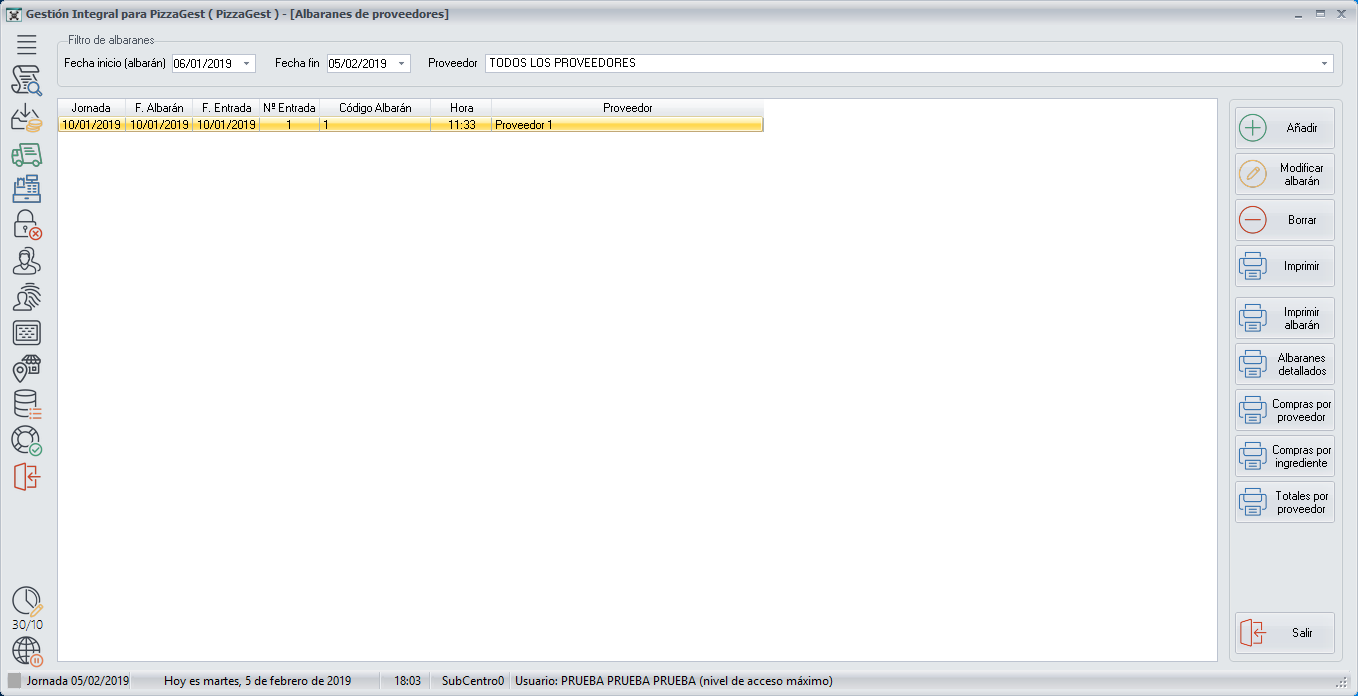
- Click Add.
- Fill in the dates, the vendor and the payment method. The vendors and the payment methods have to be registered beforehand.
- Click Add, select the ingredient (mozzarella) and fill in the quantity, the price and the discount. Repeat with each line of the delivery note.
- Check that the total amount matches the vendor's and click Enter Goods.
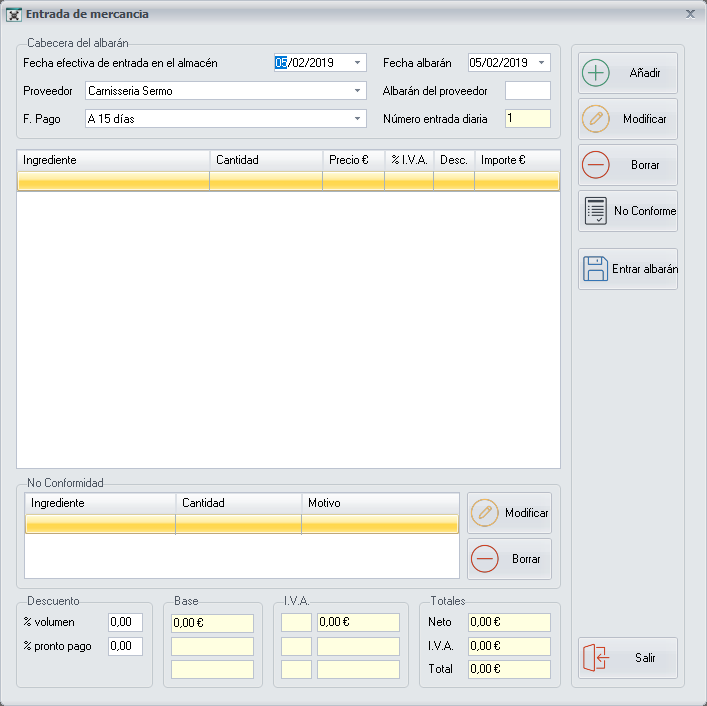
When the goods are entered, the stock, the purchase price and the average purchase price of the ingredient are updated.
Always check the quantities and the units before entering the goods. A mistake here throws the stock out.
All the fields are in Vendor Invoices and Add/Modify Vendor Invoices.
3. Record what leaves without being sold
| What has happened | Example | Where it is recorded |
|---|---|---|
| Stockroom outgoing: product leaves without a sale and without a loss. | You take mozzarella to another branch. | Items → Stockroom → Outgoings and Losses, Stockroom outgoing button |
| Loss: an ingredient that cannot be used. | An expired pack, the trimmings. | Items → Stockroom → Outgoings and Losses, Outgoing due to losses button |
| Waste: an item already prepared that never gets consumed. | A pizza that is burnt or falls on the floor. | Items → Stockroom → Wastes |
The screens are explained in Stockroom outgoing or Outgoing due to losses and Food waste.
When you cancel an order or modify an order that has already been prepared, PizzaGest returns all its products to the stockroom. Whatever cannot be used (a pizza already made, for example) has to be recorded as waste. Otherwise, the theoretical stock will not match the real one.
If you make a mistake when recording an outgoing, a loss or a waste, undo it in Items → Stockroom → Undo Stockroom Transfers: choose the type of movement, the shift day on which it was made and, if necessary, the employee's code (Undo Stockroom Transfers).
4. Take inventories
In the inventory you count what there is and PizzaGest compares it with what there should be. Go to Items → Inventories and choose the type:
| Type | What is counted | How often |
|---|---|---|
| Partial Inventory | The ingredients you have marked to be checked daily. | Every day |
| General Inventory | All the stock in the stockroom. | Normally, once a month |
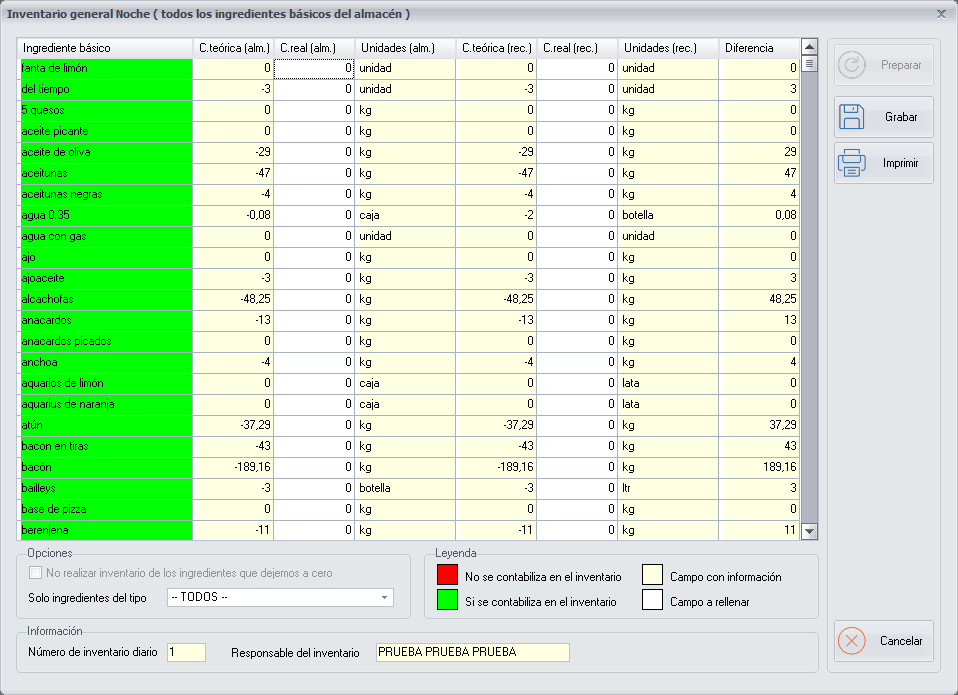
Each ingredient is counted in two columns, and you do not have to convert anything:
- Real qty. (stock): what you counted in stock units.
- Real qty. (use): what you counted in units of use.
Example. If you count 3 whole blocks of mozzarella and 1 kg loose, enter 3 in the stock column and 1 in the use column.
To count comfortably, print the inventory just as it appears on screen, write down the quantities by hand and then type them in the same order.
So that the quantities are not copied. The Theoretical qty. (stock) column can be hidden from employees: in the access level definition, the option *View theoretical quantities of inventories* must require a higher level than the one for entering inventories.
Which ingredients go into each partial inventory is decided on the inventory item's screen (Add/Modify Inventory Items, Inventories section). The rest of the options are in Inventories.
5. See the result
With everything recorded, the reports in the Items menu let you compare the theoretical with the real: