
Add/Modify Vendors
On this screen you register a vendor or change its details.
How to get here: Add or Modify button on the Vendors screen.
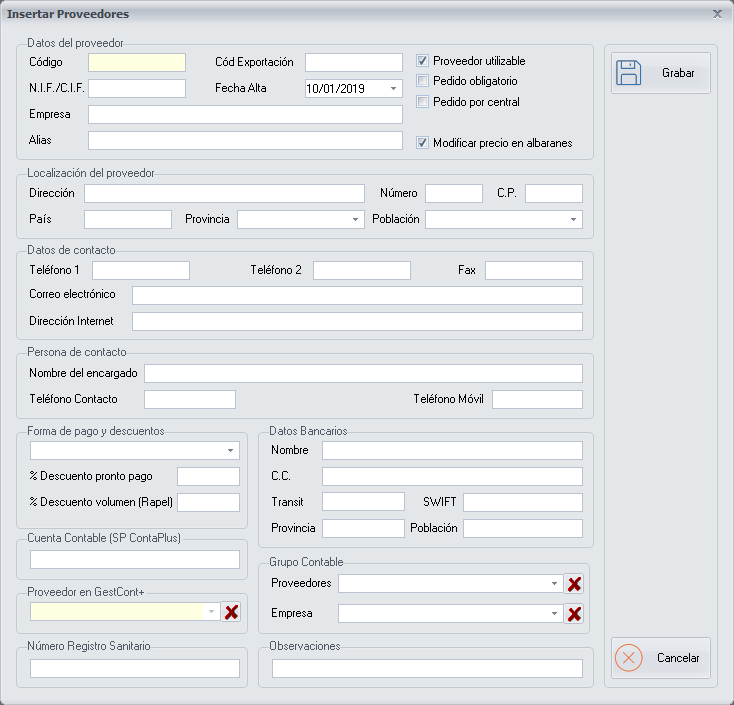
Vendor details
- Code: it is created automatically when you create a new vendor.
- Export Code: if you use a vendor export application, the export code that application gives you.
- NIF/CIF: the vendor's NIF or CIF, as applicable.
- Company: the legal name of the vendor's company.
- Alias: the name of the vendor that the branches see, in case you do not want them to know the vendor's legal name.
You can also tick these options:
| Option | What it does |
|---|---|
| Vendor available | It comes ticked. Untick it when you stop working with this vendor. |
| Mandatory order | The system does not let you enter a delivery note if you have not first placed a purchase order to the vendor. |
| Order through Head Office | For companies that have a Head Office and several branches. When you place a purchase order to the vendor, it is sent to the Head Office, and from there a joint order is placed for all the branches. |
| Modify price in delivery notes | Tick it when the price of all the inventory items this vendor supplies is not agreed and can be modified when entering a delivery note. |
Location and contact
- Vendor location: the fields of the vendor's address.
- Contact details: the vendor's contact fields.
- Contact person: the fields of the vendor's contact person.
Payment methods and discounts
First choose the payment method. The payment methods are configured on the Vendors and Creditors Payment Method screen.
- % Early payment discount: if you have agreed this type of discount with the vendor, the discount percentage. It is applied to the total of the delivery note.
- % Volume discount (Rebate): if you have agreed this type of discount with the vendor, the discount percentage. It is applied to the total of the delivery note.
Bank details
In Bank details, fill in the fields of the vendor's bank details.
Export to SP ContaPlus and GestCont+
- Accounting Account (SP ContaPlus): if you use the SP ContaPlus application, the vendor code this application gives you, to export the vendor's data from PizzaGest to SP ContaPlus.
- Vendor in GestCont+: if you use the GestCont+ application, choose the corresponding vendor from the drop-down list, to export the vendor's data from PizzaGest to GestCont+.
Other details
- Health registration number: enter it if the vendor gives it to you, to have as much information as possible about the vendor.
- Comments: any additional comment that may be useful for a later query.
Buttons
- Save: saves the vendor.
- Cancel: closes the screen without making any changes.